6. Updating Widgets and Variables
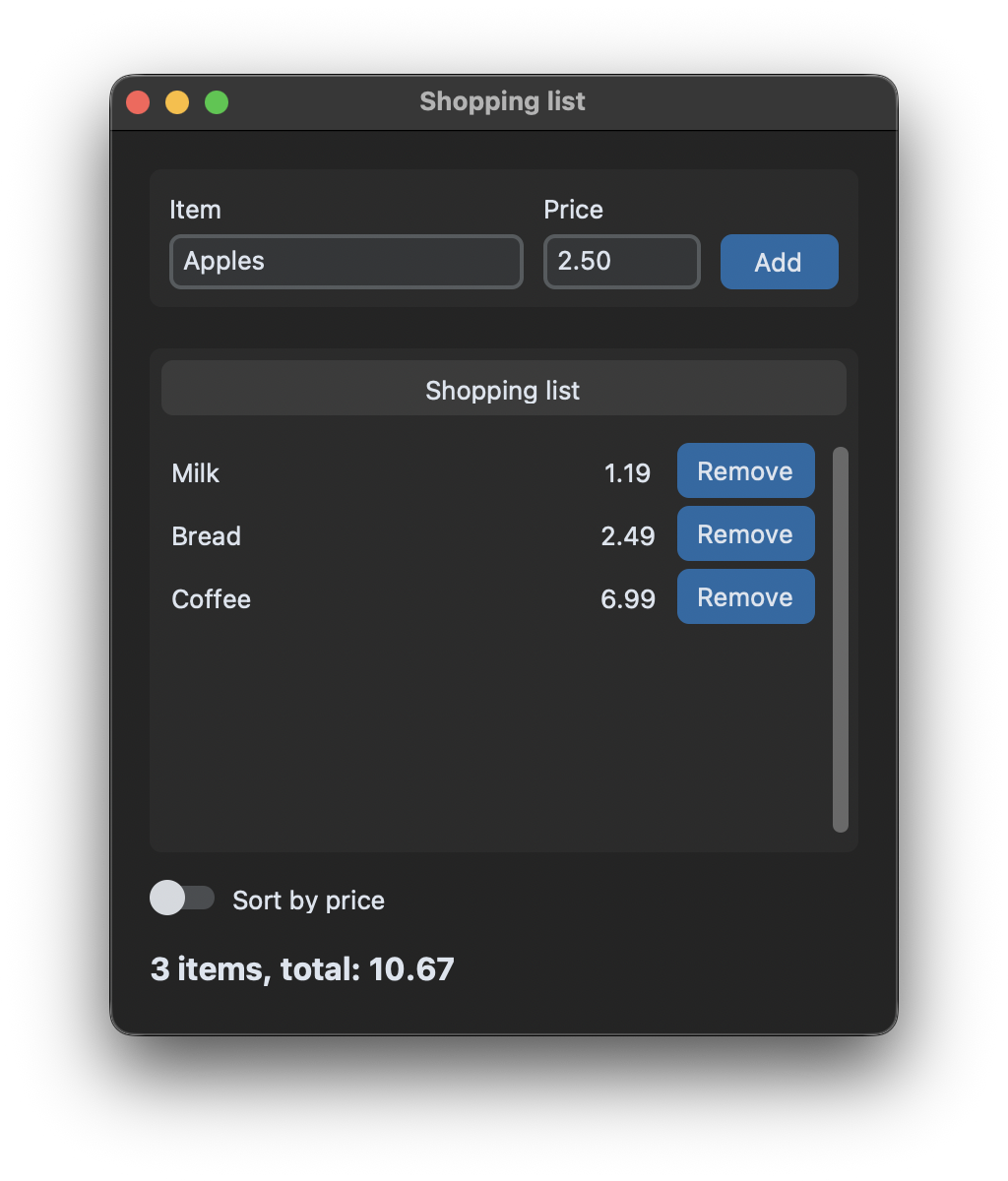
Change a widget with configure
Every widget can be changed after it was created with configure(). It takes the same arguments as the widget when it is created, so the text of a label, the color of a button or its state can be changed at any time:
self.total_label.configure(text=f"{count}, total: {total:.2f}")
self.add_button.configure(state="disabled")
cget() returns the current value of an argument, for example self.total_label.cget("text"). The window shows the change when the function that called configure() has finished.
Variables
Instead of reading and changing a widget directly, it can also be connected to a variable. tkinter has StringVar, IntVar, DoubleVar and BooleanVar, they can also be used as customtkinter.StringVar and so on. An entry gets the variable with textvariable, a switch or checkbox with variable:
self.name_var = customtkinter.StringVar()
self.sorted_var = customtkinter.BooleanVar(value=False)

self.name_entry = customtkinter.CTkEntry(self.input_frame, textvariable=self.name_var)
self.sorted_switch = customtkinter.CTkSwitch(self, text="Sort by price", variable=self.sorted_var,
                                             command=self.show_items)
self.name_var.get() returns the text in the entry and self.name_var.set("") clears it. A variable can be connected to several widgets, for example a CTkLabel with textvariable=self.name_var shows the text while it is typed into the entry.
React to every change
With trace_add("write", function) a function is called every time the value of a variable changes, no matter if the user typed something or the program called set(). Here the "Add" button is only enabled when a name and a valid price are entered:
self.name_var.trace_add("write", self.check_input)
self.price_var.trace_add("write", self.check_input)

def check_input(self, *args):
    # called every time the text in one of the entries changes
    name_ok = self.name_var.get().strip() != ""
    price_ok = self.read_price() is not None
    self.add_button.configure(state="normal" if name_ok and price_ok else "disabled")
The function gets three arguments from tkinter that are not needed here, so they are collected with *args.
Widgets from a list
The items are stored in a normal Python list. The rows in the scrollable frame are created from this list, so after every change we remove all old rows and create new ones:
def show_items(self):
    # remove the old rows and create new ones from the list
    for widget in self.list_frame.winfo_children():
        widget.destroy()

    rows = list(enumerate(self.items))
    if self.sorted_var.get():
        rows.sort(key=lambda row: row[1][1])

    for row, (index, (name, price)) in enumerate(rows):
        ...
        remove_button = customtkinter.CTkButton(self.list_frame, text="Remove", width=70,
                                                command=lambda index=index: self.remove_item(index))
Adding or removing an item only changes the list and then calls show_items(). Each row keeps the index of its item in self.items, also when the rows are sorted by price. Creating widgets takes some time, so this works well for short lists. For hundreds of rows a table with Treeview is faster, see Tables with Treeview.
The lambda for the command of the button has index=index in it. This stores the index of the row in the lambda when the button is created, see the common errors below.
Full code
import customtkinter


class App(customtkinter.CTk):
    def __init__(self):
        super().__init__()

        self.title("Shopping list")
        self.geometry("400x460")
        self.grid_columnconfigure(0, weight=1)
        self.grid_rowconfigure(1, weight=1)

        self.items = [("Milk", 1.19), ("Bread", 2.49), ("Coffee", 6.99)]

        # variables that are connected to the entries and the switch
        self.name_var = customtkinter.StringVar()
        self.price_var = customtkinter.StringVar()
        self.sorted_var = customtkinter.BooleanVar(value=False)
        self.name_var.trace_add("write", self.check_input)
        self.price_var.trace_add("write", self.check_input)

        self.input_frame = customtkinter.CTkFrame(self)
        self.input_frame.grid(row=0, column=0, padx=20, pady=(20, 10), sticky="ew")
        self.input_frame.grid_columnconfigure(0, weight=1)
        self.name_label = customtkinter.CTkLabel(self.input_frame, text="Item")
        self.name_label.grid(row=0, column=0, padx=(10, 5), pady=(5, 0), sticky="w")
        self.price_label = customtkinter.CTkLabel(self.input_frame, text="Price")
        self.price_label.grid(row=0, column=1, padx=5, pady=(5, 0), sticky="w")
        self.name_entry = customtkinter.CTkEntry(self.input_frame, textvariable=self.name_var)
        self.name_entry.grid(row=1, column=0, padx=(10, 5), pady=(0, 10), sticky="ew")
        self.price_entry = customtkinter.CTkEntry(self.input_frame, textvariable=self.price_var, width=80)
        self.price_entry.grid(row=1, column=1, padx=5, pady=(0, 10))
        self.price_entry.bind("<Return>", self.add_item)
        self.add_button = customtkinter.CTkButton(self.input_frame, text="Add", width=60, state="disabled",
                                                  command=self.add_item)
        self.add_button.grid(row=1, column=2, padx=(5, 10), pady=(0, 10))

        self.list_frame = customtkinter.CTkScrollableFrame(self, label_text="Shopping list")
        self.list_frame.grid(row=1, column=0, padx=20, pady=10, sticky="nsew")
        self.list_frame.grid_columnconfigure(0, weight=1)

        self.sorted_switch = customtkinter.CTkSwitch(self, text="Sort by price", variable=self.sorted_var,
                                                     command=self.show_items)
        self.sorted_switch.grid(row=2, column=0, padx=20, pady=0, sticky="w")
        self.total_label = customtkinter.CTkLabel(self, text="", font=customtkinter.CTkFont(size=16, weight="bold"))
        self.total_label.grid(row=3, column=0, padx=20, pady=(10, 20), sticky="w")

        self.show_items()

    def check_input(self, *args):
        # called every time the text in one of the entries changes
        name_ok = self.name_var.get().strip() != ""
        price_ok = self.read_price() is not None
        self.add_button.configure(state="normal" if name_ok and price_ok else "disabled")

    def read_price(self):
        try:
            price = float(self.price_var.get().replace(",", "."))
        except ValueError:
            return None
        return price if price >= 0 else None

    def add_item(self, event=None):
        price = self.read_price()
        if self.name_var.get().strip() == "" or price is None:
            return
        self.items.append((self.name_var.get().strip(), price))
        self.name_var.set("")
        self.price_var.set("")
        self.name_entry.focus()
        self.show_items()

    def remove_item(self, index):
        self.items.pop(index)
        self.show_items()

    def show_items(self):
        # remove the old rows and create new ones from the list
        for widget in self.list_frame.winfo_children():
            widget.destroy()

        rows = list(enumerate(self.items))
        if self.sorted_var.get():
            rows.sort(key=lambda row: row[1][1])

        for row, (index, (name, price)) in enumerate(rows):
            name_label = customtkinter.CTkLabel(self.list_frame, text=name, anchor="w")
            name_label.grid(row=row, column=0, padx=(5, 10), pady=2, sticky="ew")
            price_label = customtkinter.CTkLabel(self.list_frame, text=f"{price:.2f}")
            price_label.grid(row=row, column=1, padx=10, pady=2)
            # index=index stores the index of this row for the button
            remove_button = customtkinter.CTkButton(self.list_frame, text="Remove", width=70,
                                                    command=lambda index=index: self.remove_item(index))
            remove_button.grid(row=row, column=2, padx=(0, 5), pady=2)

        total = sum(price for name, price in self.items)
        count = "1 item" if len(self.items) == 1 else f"{len(self.items)} items"
        self.total_label.configure(text=f"{count}, total: {total:.2f}")


app = App()
app.mainloop()
Common errors
AttributeError: 'NoneType' object has no attribute 'configure'
grid(), pack() and place() return None. If they are called in the same line as the widget, the variable gets None instead of the widget:
self.label = customtkinter.CTkLabel(self, text="Hello").grid(row=0, column=0) # self.label is None
Create the widget first and place it in a second line, like in the code above.
All buttons remove the last row
Without index=index, the lambda reads the variable index only when the button is clicked. Then the loop is finished and index has the value of the last row for every button. With lambda index=index: ... the current value is stored for each button.
The text of the entry is empty
get() returns the text at the moment it is called. If it is called in __init__ right after the entry is created, the entry is still empty. Read the text in the function that is called by the button or by trace_add.
The placeholder text is not shown
A CTkEntry with a textvariable doesn't show its placeholder_text. Use a label above the entry, like the "Item" and "Price" labels here.
The label only changes at the end of a loop
The window is only redrawn when your function has finished. If a function changes a label in a loop with time.sleep(), the user only sees the last value and the window freezes in the meantime. Use after() or a thread instead, see Long Tasks without Freezing.