4. Tables with Treeview
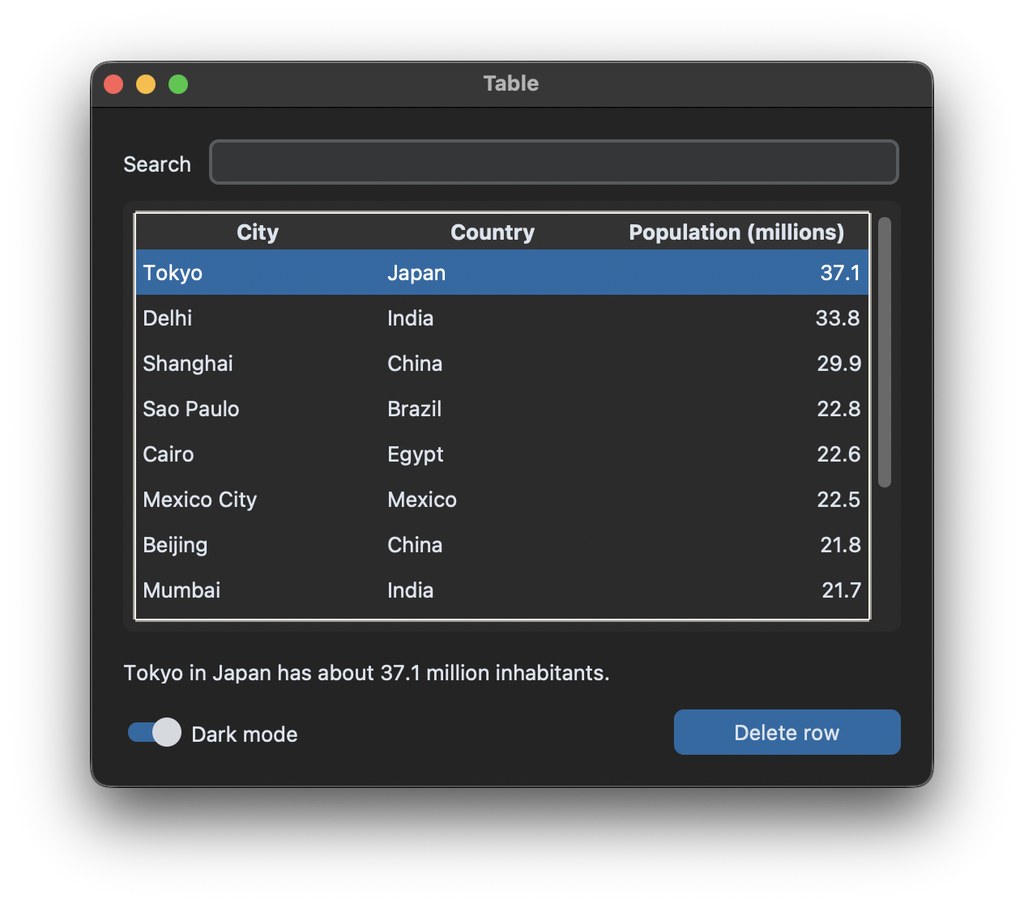
Treeview
CustomTkinter has no table widget, but tkinter comes with ttk.Treeview, which can show data in rows and columns. With some styling it fits into a CustomTkinter app quite well. In this tutorial we create a table of cities with a search entry, sortable columns and a button to delete the selected row.
The columns argument gets an identifier for every column, and show="headings" hides the first column that a Treeview has for tree structures. Then every column gets a heading and a width:
COLUMNS = [("city", "City", 140), ("country", "Country", 130), ("population", "Population (millions)", 150)]

self.table = ttk.Treeview(self.table_frame, columns=[c[0] for c in COLUMNS], show="headings",
                          style="CTk.Treeview")
for column, heading, width in COLUMNS:
    self.table.heading(column, text=heading, command=lambda c=column: self.sort_by(c))
    self.table.column(column, width=width, anchor="e" if column == "population" else "w")
Rows are added with insert. The first argument is the parent item, which is an empty string for a normal table:
self.table.insert("", "end", values=("Tokyo", "Japan", 37.1))
Scrollbar
The table is placed in a CTkFrame together with a CTkScrollbar. The scrollbar and the table are connected in both directions, the scrollbar moves the table with command, and the table moves the scrollbar with yscrollcommand:
self.scrollbar = customtkinter.CTkScrollbar(self.table_frame, command=self.table.yview)
self.scrollbar.grid(row=0, column=1, padx=(0, 2), pady=6, sticky="ns")
self.table.configure(yscrollcommand=self.scrollbar.set)
Style
The colors of a Treeview are set with a ttk.Style. To match the rest of the app, we take them from the current CustomTkinter theme. Every color in the theme is a list with a color for light mode at index 0 and one for dark mode at index 1:
    def apply_table_style(self, mode=None):
        # take the colors from the current CustomTkinter theme, index 0 is light mode, 1 is dark mode
        theme = customtkinter.ThemeManager.theme
        i = 0 if customtkinter.get_appearance_mode() == "Light" else 1
        background = theme["CTkFrame"]["fg_color"][i]
        heading_background = theme["CTkFrame"]["top_fg_color"][i]
        text_color = theme["CTkLabel"]["text_color"][i]
        selected_color = theme["CTkButton"]["fg_color"][i]
The ttk themes of Windows and macOS ignore most colors, therefore we switch to the clam theme, which supports all of them. The row height and the font size are multiplied with the widget scaling, so that the table has the right size on HighDPI displays like the CustomTkinter widgets:
        scaling = customtkinter.ScalingTracker.get_widget_scaling(self)
        font = customtkinter.CTkFont()
        row_font = (font.cget("family"), -round(13 * scaling))
        heading_font = (font.cget("family"), -round(13 * scaling), "bold")

        style = ttk.Style(self)
        style.theme_use("clam")  # a ttk theme that allows changing all colors
        style.configure("CTk.Treeview", background=background, fieldbackground=background,
                        foreground=text_color, rowheight=round(28 * scaling), font=row_font, borderwidth=0)
        style.map("CTk.Treeview", background=[("selected", selected_color)], foreground=[("selected", "white")])
        style.configure("CTk.Treeview.Heading", background=heading_background, foreground=text_color,
                        font=heading_font, relief="flat", borderwidth=0)
        style.map("CTk.Treeview.Heading", background=[("active", heading_background)])
A negative font size means pixels instead of points, which is how CustomTkinter sets its font sizes too.
Appearance mode
The Treeview doesn't know about the appearance mode of CustomTkinter. So when the mode changes, apply_table_style has to run again. The AppearanceModeTracker calls all functions that were added to it with the new mode, so we add our method once in __init__:
customtkinter.AppearanceModeTracker.add(self.apply_table_style)
When the window is destroyed, the method should be removed again:
    def destroy(self):
        customtkinter.AppearanceModeTracker.remove(self.apply_table_style)
        super().destroy()
Search, sort and select
The rows are kept in the list self.rows. The method refresh deletes all rows of the table and inserts the rows that match the search text again. The search entry has a StringVar, and trace_add calls refresh every time the text changes:
self.search_var = customtkinter.StringVar()
self.search_var.trace_add("write", lambda *args: self.refresh())

    def refresh(self):
        search = self.search_var.get().strip().lower()
        self.table.delete(*self.table.get_children())
        for row in self.rows:
            if search in row[0].lower() or search in row[1].lower():
                self.table.insert("", "end", values=row)
A click on a column heading sorts the list by this column, a second click reverses the order. The selected row is read with selection(), which returns the ids of the selected items, and item(id)["values"] returns the values of an item.
Full code
from tkinter import ttk
import customtkinter

COLUMNS = [("city", "City", 140), ("country", "Country", 130), ("population", "Population (millions)", 150)]
ROWS = [
    ("Tokyo", "Japan", 37.1), ("Delhi", "India", 33.8), ("Shanghai", "China", 29.9),
    ("Sao Paulo", "Brazil", 22.8), ("Cairo", "Egypt", 22.6), ("Mexico City", "Mexico", 22.5),
    ("Beijing", "China", 21.8), ("Mumbai", "India", 21.7), ("New York", "United States", 18.9),
    ("Paris", "France", 11.3), ("London", "United Kingdom", 9.8), ("Berlin", "Germany", 3.7),
]


class App(customtkinter.CTk):
    def __init__(self):
        super().__init__()

        self.title("Table")
        self.geometry("520x420")
        self.grid_columnconfigure(0, weight=1)
        self.grid_rowconfigure(1, weight=1)

        self.rows = list(ROWS)
        self.sort_column = None
        self.sort_reverse = False

        # search bar
        self.search_var = customtkinter.StringVar()
        self.search_var.trace_add("write", lambda *args: self.refresh())
        self.search_frame = customtkinter.CTkFrame(self, fg_color="transparent")
        self.search_frame.grid(row=0, column=0, padx=20, pady=(20, 10), sticky="ew")
        self.search_frame.grid_columnconfigure(1, weight=1)
        self.search_label = customtkinter.CTkLabel(self.search_frame, text="Search")
        self.search_label.grid(row=0, column=0, padx=(0, 10))
        self.search_entry = customtkinter.CTkEntry(self.search_frame, textvariable=self.search_var)
        self.search_entry.grid(row=0, column=1, sticky="ew")

        # the table and its scrollbar inside a CTkFrame
        self.table_frame = customtkinter.CTkFrame(self)
        self.table_frame.grid(row=1, column=0, padx=20, pady=0, sticky="nsew")
        self.table_frame.grid_columnconfigure(0, weight=1)
        self.table_frame.grid_rowconfigure(0, weight=1)

        self.table = ttk.Treeview(self.table_frame, columns=[c[0] for c in COLUMNS], show="headings",
                                  style="CTk.Treeview")
        for column, heading, width in COLUMNS:
            self.table.heading(column, text=heading, command=lambda c=column: self.sort_by(c))
            self.table.column(column, width=width, anchor="e" if column == "population" else "w")
        self.table.grid(row=0, column=0, padx=(6, 0), pady=6, sticky="nsew")
        self.table.bind("<<TreeviewSelect>>", lambda event: self.show_selection())

        self.scrollbar = customtkinter.CTkScrollbar(self.table_frame, command=self.table.yview)
        self.scrollbar.grid(row=0, column=1, padx=(0, 2), pady=6, sticky="ns")
        self.table.configure(yscrollcommand=self.scrollbar.set)

        # details and actions below the table
        self.details_label = customtkinter.CTkLabel(self, text="Select a row", anchor="w")
        self.details_label.grid(row=2, column=0, padx=20, pady=(10, 0), sticky="ew")
        self.bottom_frame = customtkinter.CTkFrame(self, fg_color="transparent")
        self.bottom_frame.grid(row=3, column=0, padx=20, pady=(10, 20), sticky="ew")
        self.bottom_frame.grid_columnconfigure(0, weight=1)
        self.mode_switch = customtkinter.CTkSwitch(self.bottom_frame, text="Dark mode", command=self.toggle_mode)
        self.mode_switch.grid(row=0, column=0, sticky="w")
        if customtkinter.get_appearance_mode() == "Dark":
            self.mode_switch.select()
        self.delete_button = customtkinter.CTkButton(self.bottom_frame, text="Delete row",
                                                     command=self.delete_selected)
        self.delete_button.grid(row=0, column=1, sticky="e")

        self.apply_table_style()
        customtkinter.AppearanceModeTracker.add(self.apply_table_style)
        self.refresh()

    def apply_table_style(self, mode=None):
        # take the colors from the current CustomTkinter theme, index 0 is light mode, 1 is dark mode
        theme = customtkinter.ThemeManager.theme
        i = 0 if customtkinter.get_appearance_mode() == "Light" else 1
        background = theme["CTkFrame"]["fg_color"][i]
        heading_background = theme["CTkFrame"]["top_fg_color"][i]
        text_color = theme["CTkLabel"]["text_color"][i]
        selected_color = theme["CTkButton"]["fg_color"][i]

        scaling = customtkinter.ScalingTracker.get_widget_scaling(self)
        font = customtkinter.CTkFont()
        row_font = (font.cget("family"), -round(13 * scaling))
        heading_font = (font.cget("family"), -round(13 * scaling), "bold")

        style = ttk.Style(self)
        style.theme_use("clam")  # a ttk theme that allows changing all colors
        style.configure("CTk.Treeview", background=background, fieldbackground=background,
                        foreground=text_color, rowheight=round(28 * scaling), font=row_font, borderwidth=0)
        style.map("CTk.Treeview", background=[("selected", selected_color)], foreground=[("selected", "white")])
        style.configure("CTk.Treeview.Heading", background=heading_background, foreground=text_color,
                        font=heading_font, relief="flat", borderwidth=0)
        style.map("CTk.Treeview.Heading", background=[("active", heading_background)])

    def refresh(self):
        search = self.search_var.get().strip().lower()
        self.table.delete(*self.table.get_children())
        for row in self.rows:
            if search in row[0].lower() or search in row[1].lower():
                self.table.insert("", "end", values=row)

    def sort_by(self, column):
        index = [c[0] for c in COLUMNS].index(column)
        self.sort_reverse = not self.sort_reverse if self.sort_column == column else False
        self.sort_column = column
        self.rows.sort(key=lambda row: row[index], reverse=self.sort_reverse)
        self.refresh()

    def selected_row(self):
        selection = self.table.selection()
        if not selection:
            return None
        city = self.table.item(selection[0])["values"][0]
        return next(row for row in self.rows if row[0] == city)

    def show_selection(self):
        row = self.selected_row()
        if row is None:
            self.details_label.configure(text="Select a row")
        else:
            self.details_label.configure(text=f"{row[0]} in {row[1]} has about {row[2]} million inhabitants.")

    def delete_selected(self):
        row = self.selected_row()
        if row is not None:
            self.rows.remove(row)
            self.refresh()
            self.show_selection()

    def toggle_mode(self):
        customtkinter.set_appearance_mode("dark" if self.mode_switch.get() == 1 else "light")

    def destroy(self):
        customtkinter.AppearanceModeTracker.remove(self.apply_table_style)
        super().destroy()


app = App()
app.mainloop()
Other options
If you only need a list from which the user selects one or more entries, a CTkScrollableFrame with checkboxes or buttons is often enough, see Scrollable Frames. There are also community widgets for tables and lists, like CTkTable and CTkListbox, which are not part of CustomTkinter.
Common errors
The colors of the table don't change
The default ttk themes on Windows (vista) and macOS (aqua) ignore the background colors. Use style.theme_use("clam") like in the example above. Note that this changes the theme of all ttk widgets in your app.
The rows are too small on Windows
On displays with a scaling of more than 100%, the default row height is too small for the font. Multiply the rowheight with the widget scaling like above.