7. Settings Window with CTkTabview
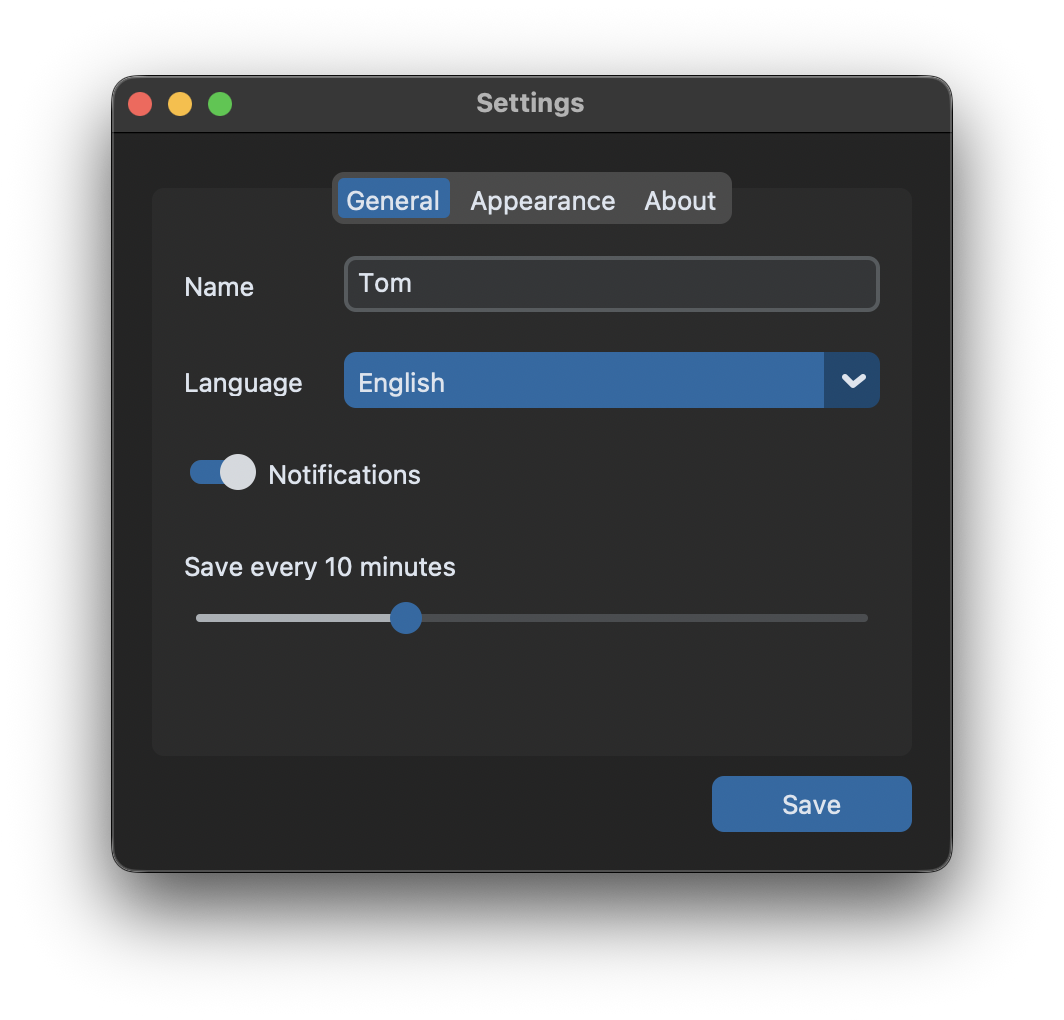
Tabs
A CTkTabview is a frame with a row of buttons at the top, one for each tab. add() creates a new tab and returns its frame, tab() returns the frame of an existing tab by its name:
self.tabview = customtkinter.CTkTabview(self, command=self.tab_changed)
self.tabview.add("General")
self.tabview.add("Appearance")
self.tabview.add("About")

general = self.tabview.tab("General")
The widgets of a tab are created with the tab as master, not with the tabview itself. Each tab is a CTkFrame with its own grid, so its columns are configured separately:
general.grid_columnconfigure(1, weight=1)
self.name_entry = customtkinter.CTkEntry(general)
self.name_entry.grid(row=0, column=1, padx=10, pady=10, sticky="ew")
Selected tab
The command of the tabview is called when the user selects another tab. It gets no arguments, get() returns the name of the selected tab:
def tab_changed(self):
    self.status_label.configure(text=f"{self.tabview.get()} settings")
set("Appearance") selects a tab from the program, this doesn't call the command. Since version 6.0 there are also index() for the position of the selected tab, get(index) for the name of the tab at a position and len() for the number of tabs.
Rename, move and delete tabs
Tabs can be changed while the app is running:
self.tabview.rename("About", "Info")
self.tabview.move(0, "Info")  # move to the first position
self.tabview.delete("Info")
After renaming the selected tab, call set() with the new name, so that its button is shown as selected again. If the selected tab is deleted, the first tab is selected.
Save the settings
The settings are stored in a dictionary and saved as a JSON file. When the app starts, the values from the file are put into the widgets. The dictionary DEFAULTS contains a value for every setting, so the app also works without a file and with files from an older version that don't have all settings yet:
settings = dict(DEFAULTS)
if os.path.exists(self.settings_file):
    with open(self.settings_file, encoding="utf-8") as file:
        settings.update(json.load(file))
The appearance mode and the scaling are applied as soon as they are chosen, so the user sees the result right away. How the scaling works is explained in Scaling and High DPI.
Full code
import json
import os
import customtkinter

SETTINGS_FILE = os.path.join(os.path.dirname(os.path.abspath(__file__)), "settings.json")
DEFAULTS = {"name": "", "language": "English", "notifications": True, "autosave": 5,
            "appearance_mode": "System", "scaling": "100%"}


class App(customtkinter.CTk):
    def __init__(self):
        super().__init__()

        self.title("Settings")
        self.geometry("420x370")
        self.grid_columnconfigure(0, weight=1)
        self.grid_rowconfigure(0, weight=1)
        self.settings_file = SETTINGS_FILE

        self.tabview = customtkinter.CTkTabview(self, command=self.tab_changed)
        self.tabview.grid(row=0, column=0, columnspan=2, padx=20, pady=(10, 0), sticky="nsew")
        self.tabview.add("General")
        self.tabview.add("Appearance")
        self.tabview.add("About")

        # widgets in a tab are created with the tab as master
        general = self.tabview.tab("General")
        general.grid_columnconfigure(1, weight=1)
        customtkinter.CTkLabel(general, text="Name").grid(row=0, column=0, padx=10, pady=10, sticky="w")
        self.name_entry = customtkinter.CTkEntry(general)
        self.name_entry.grid(row=0, column=1, padx=10, pady=10, sticky="ew")
        customtkinter.CTkLabel(general, text="Language").grid(row=1, column=0, padx=10, pady=10, sticky="w")
        self.language_menu = customtkinter.CTkOptionMenu(general, values=["English", "Deutsch", "Español"])
        self.language_menu.grid(row=1, column=1, padx=10, pady=10, sticky="ew")
        self.notifications_switch = customtkinter.CTkSwitch(general, text="Notifications")
        self.notifications_switch.grid(row=2, column=0, columnspan=2, padx=10, pady=10, sticky="w")
        self.autosave_label = customtkinter.CTkLabel(general, text="")
        self.autosave_label.grid(row=3, column=0, columnspan=2, padx=10, pady=(10, 0), sticky="w")
        self.autosave_slider = customtkinter.CTkSlider(general, from_=1, to=30, number_of_steps=29,
                                                       command=self.show_autosave)
        self.autosave_slider.grid(row=4, column=0, columnspan=2, padx=10, pady=(5, 10), sticky="ew")

        appearance = self.tabview.tab("Appearance")
        appearance.grid_columnconfigure(0, weight=1)
        customtkinter.CTkLabel(appearance, text="Appearance mode").grid(row=0, column=0, padx=10, pady=(10, 0),
                                                                        sticky="w")
        self.mode_button = customtkinter.CTkSegmentedButton(appearance, values=["System", "Light", "Dark"],
                                                            command=customtkinter.set_appearance_mode)
        self.mode_button.grid(row=1, column=0, padx=10, pady=(5, 10), sticky="ew")
        customtkinter.CTkLabel(appearance, text="UI scaling").grid(row=2, column=0, padx=10, pady=(10, 0), sticky="w")
        self.scaling_menu = customtkinter.CTkOptionMenu(appearance, values=["80%", "90%", "100%", "110%", "125%"],
                                                        command=self.change_scaling)
        self.scaling_menu.grid(row=3, column=0, padx=10, pady=(5, 10), sticky="ew")

        about = self.tabview.tab("About")
        about.grid_columnconfigure(0, weight=1)
        self.app_label = customtkinter.CTkLabel(about, text="Notes App",
                                                font=customtkinter.CTkFont(size=20, weight="bold"))
        self.app_label.grid(row=0, column=0, padx=10, pady=(20, 5))
        self.version_label = customtkinter.CTkLabel(about, text=f"Version 2.1\nCustomTkinter {customtkinter.__version__}")
        self.version_label.grid(row=1, column=0, padx=10, pady=5)

        self.status_label = customtkinter.CTkLabel(self, text="", text_color="gray50")
        self.status_label.grid(row=1, column=0, padx=20, pady=(10, 20), sticky="w")
        self.save_button = customtkinter.CTkButton(self, text="Save", width=100, command=self.save_settings)
        self.save_button.grid(row=1, column=1, padx=20, pady=(10, 20), sticky="e")

        self.load_settings()

    def tab_changed(self):
        # the command of the tabview gets no arguments, get() returns the selected tab
        self.status_label.configure(text=f"{self.tabview.get()} settings")

    def show_autosave(self, value):
        self.autosave_label.configure(text=f"Save every {int(value)} minutes")

    def change_scaling(self, value):
        customtkinter.set_widget_scaling(int(value.replace("%", "")) / 100)

    def load_settings(self):
        settings = dict(DEFAULTS)
        if os.path.exists(self.settings_file):
            with open(self.settings_file, encoding="utf-8") as file:
                settings.update(json.load(file))

        self.name_entry.delete(0, "end")
        self.name_entry.insert(0, settings["name"])
        self.language_menu.set(settings["language"])
        self.notifications_switch.set(settings["notifications"])
        self.autosave_slider.set(settings["autosave"])
        self.show_autosave(settings["autosave"])
        self.mode_button.set(settings["appearance_mode"])
        customtkinter.set_appearance_mode(settings["appearance_mode"])
        self.scaling_menu.set(settings["scaling"])
        self.change_scaling(settings["scaling"])

    def save_settings(self):
        settings = {
            "name": self.name_entry.get(),
            "language": self.language_menu.get(),
            "notifications": bool(self.notifications_switch.get()),
            "autosave": int(self.autosave_slider.get()),
            "appearance_mode": self.mode_button.get(),
            "scaling": self.scaling_menu.get(),
        }
        with open(self.settings_file, "w", encoding="utf-8") as file:
            json.dump(settings, file, indent=2)
        self.status_label.configure(text="Settings saved")


app = App()
app.mainloop()
Where to save the settings
In this example the file settings.json is saved next to the script. For an app that is installed or packaged as an executable, this folder is often read-only or temporary. Save the settings in the home folder of the user instead, for example with the platformdirs package:
import platformdirs

folder = platformdirs.user_config_dir("Notes App")
os.makedirs(folder, exist_ok=True)
SETTINGS_FILE = os.path.join(folder, "settings.json")
Common errors
The widgets cover the tab buttons
A widget that is created with the tabview as master is placed in the grid of the tabview itself, on top of the buttons. Use the tab as master: customtkinter.CTkEntry(self.tabview.tab("General")).
ValueError: CTkTabview has no tab named 'general'
Tab names are case-sensitive and must match exactly the name that was used with add().
ValueError: CTkTabview already has tab named 'General'
Every tab needs its own name. Check if the tab exists with name in [tabview.get(i) for i in range(tabview.len())] before adding it.
The settings are lost after restarting the executable
A PyInstaller executable created with --onefile runs from a temporary folder that is deleted when the app is closed. Save the settings in the home folder of the user, like above.