1. Forms and Validation
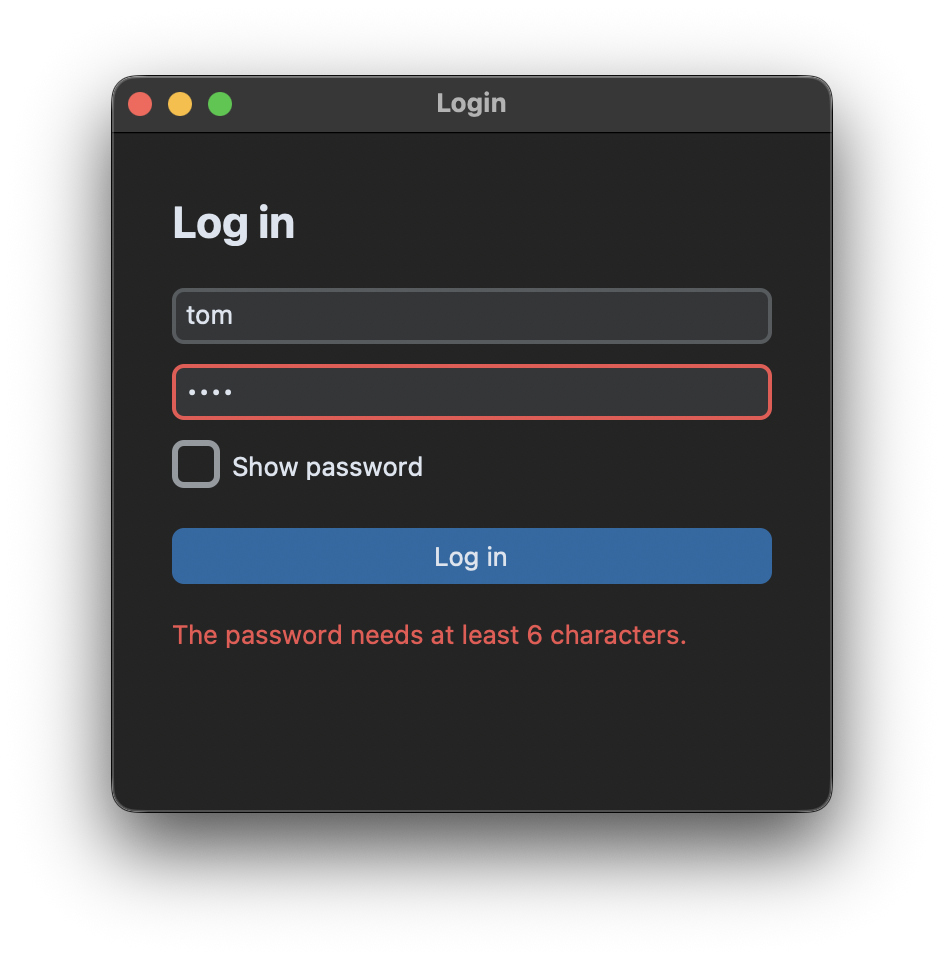
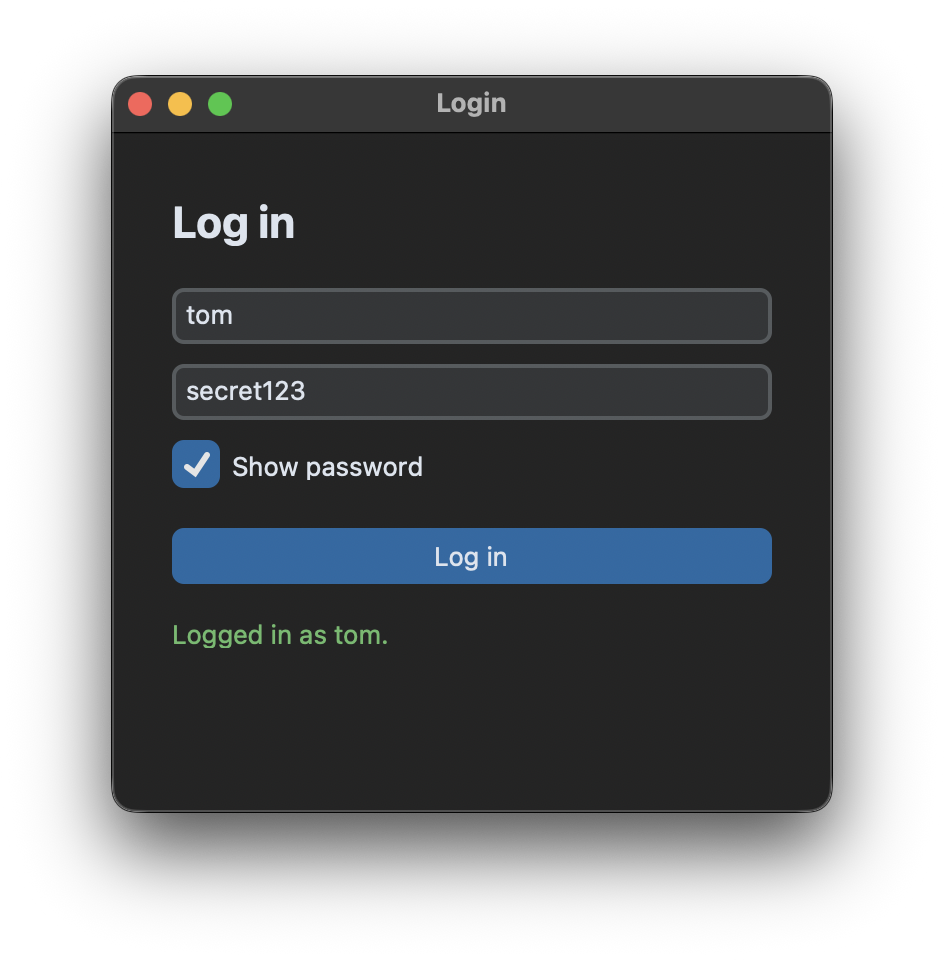
Login form
In this tutorial we create a login form with two entries, a checkbox to show the password and a button. The entries get a placeholder_text, which is shown as long as the entry is empty and not focused. For the password entry we pass show="•", so every character is displayed as a dot:
self.username_entry = customtkinter.CTkEntry(self, placeholder_text="Username")
self.username_entry.grid(row=1, column=0, padx=30, pady=(0, 10), sticky="ew")

self.password_entry = customtkinter.CTkEntry(self, placeholder_text="Password", show="•")
self.password_entry.grid(row=2, column=0, padx=30, pady=(0, 10), sticky="ew")
The placeholder is displayed as normal text, even in the password entry, because CustomTkinter removes the show argument while the placeholder is visible.
Show the password
The checkbox switches the show argument of the password entry. With an empty string the characters are visible:
    def toggle_password(self):
        if self.show_password_checkbox.get() == 1:
            self.password_entry.configure(show="")
        else:
            self.password_entry.configure(show="•")
Validation
When the button is clicked, the login method reads both entries and checks them. If something is wrong, the border of the entry turns red and a message is shown below the button:
    def login(self, event=None):
        username = self.username_entry.get().strip()
        password = self.password_entry.get()
        self.reset_errors()

        if not username:
            self.show_error(self.username_entry, "Please enter your username.")
        elif len(password) < MIN_PASSWORD_LENGTH:
            self.show_error(self.password_entry, f"The password needs at least {MIN_PASSWORD_LENGTH} characters.")
        else:
            self.message_label.configure(text=f"Logged in as {username}.", text_color=SUCCESS_COLOR)
The colors are tuples with a color for light mode and one for dark mode, because a red that is readable on a light background is often too dark on a dark background:
ERROR_COLOR = ("#C62828", "#EF5350") # (light mode, dark mode)
Before every check, reset_errors sets the border color back. The default color comes from the current theme, so it also fits if you use another theme than the default one:
    def reset_errors(self):
        default_border_color = customtkinter.ThemeManager.theme["CTkEntry"]["border_color"]
        self.username_entry.configure(border_color=default_border_color)
        self.password_entry.configure(border_color=default_border_color)
Submit with Enter
Most users expect that Enter submits a form. Therefore we bind the Enter key of both entries to the login method. That's also why login takes an optional event argument, bind passes an event object and the button passes nothing:
self.username_entry.bind("<Return>", self.login)
self.password_entry.bind("<Return>", self.login)
Full code
import customtkinter

MIN_PASSWORD_LENGTH = 6
ERROR_COLOR = ("#C62828", "#EF5350")  # (light mode, dark mode)
SUCCESS_COLOR = ("#2E7D32", "#66BB6A")


class App(customtkinter.CTk):
    def __init__(self):
        super().__init__()

        self.title("Login")
        self.geometry("360x340")
        self.grid_columnconfigure(0, weight=1)

        self.title_label = customtkinter.CTkLabel(self, text="Log in",
                                                  font=customtkinter.CTkFont(size=22, weight="bold"))
        self.title_label.grid(row=0, column=0, padx=30, pady=(30, 20), sticky="w")

        self.username_entry = customtkinter.CTkEntry(self, placeholder_text="Username")
        self.username_entry.grid(row=1, column=0, padx=30, pady=(0, 10), sticky="ew")

        self.password_entry = customtkinter.CTkEntry(self, placeholder_text="Password", show="•")
        self.password_entry.grid(row=2, column=0, padx=30, pady=(0, 10), sticky="ew")

        self.show_password_checkbox = customtkinter.CTkCheckBox(self, text="Show password",
                                                                command=self.toggle_password)
        self.show_password_checkbox.grid(row=3, column=0, padx=30, pady=(0, 20), sticky="w")

        self.login_button = customtkinter.CTkButton(self, text="Log in", command=self.login)
        self.login_button.grid(row=4, column=0, padx=30, pady=(0, 10), sticky="ew")

        self.message_label = customtkinter.CTkLabel(self, text="", wraplength=300)
        self.message_label.grid(row=5, column=0, padx=30, pady=(0, 20), sticky="w")

        # pressing Enter in one of the entries also logs in
        self.username_entry.bind("<Return>", self.login)
        self.password_entry.bind("<Return>", self.login)

    def toggle_password(self):
        if self.show_password_checkbox.get() == 1:
            self.password_entry.configure(show="")
        else:
            self.password_entry.configure(show="•")

    def login(self, event=None):
        username = self.username_entry.get().strip()
        password = self.password_entry.get()
        self.reset_errors()

        if not username:
            self.show_error(self.username_entry, "Please enter your username.")
        elif len(password) < MIN_PASSWORD_LENGTH:
            self.show_error(self.password_entry, f"The password needs at least {MIN_PASSWORD_LENGTH} characters.")
        else:
            self.message_label.configure(text=f"Logged in as {username}.", text_color=SUCCESS_COLOR)

    def show_error(self, entry, message):
        entry.configure(border_color=ERROR_COLOR)
        entry.focus()
        self.message_label.configure(text=message, text_color=ERROR_COLOR)

    def reset_errors(self):
        default_border_color = customtkinter.ThemeManager.theme["CTkEntry"]["border_color"]
        self.username_entry.configure(border_color=default_border_color)
        self.password_entry.configure(border_color=default_border_color)


app = App()
app.mainloop()
A real app would of course check the username and password against a database or a server instead of only checking the length.
Only allow numbers
If an entry should only accept certain characters, you can use the validate and validatecommand arguments, which CustomTkinter passes on to the tkinter entry inside the CTkEntry. The function is registered with register and gets the new text of the entry with %P. If it returns False, the change is rejected:
def only_digits(text):
    return text.isdigit() or text == ""

validate_command = (self.register(only_digits), "%P")
self.age_entry = customtkinter.CTkEntry(self, validate="key", validatecommand=validate_command)
Don't combine this with a placeholder_text: the placeholder is inserted into the entry like normal text, the validation rejects it and the entry stays empty. Use a label next to the entry instead.
Common errors
The placeholder text is not shown
The placeholder is only shown if the entry has no textvariable, and it is hidden while the entry has the keyboard focus. Read and set the text with get() and set() instead of a variable, if you need a placeholder. set() is new in version 6.0, in older versions use delete(0, "end") and insert(0, text).
get() returns an empty string
While the placeholder is visible, get() returns an empty string and not the placeholder text. This is intended, so you don't have to check for the placeholder yourself.