2. Dropdowns
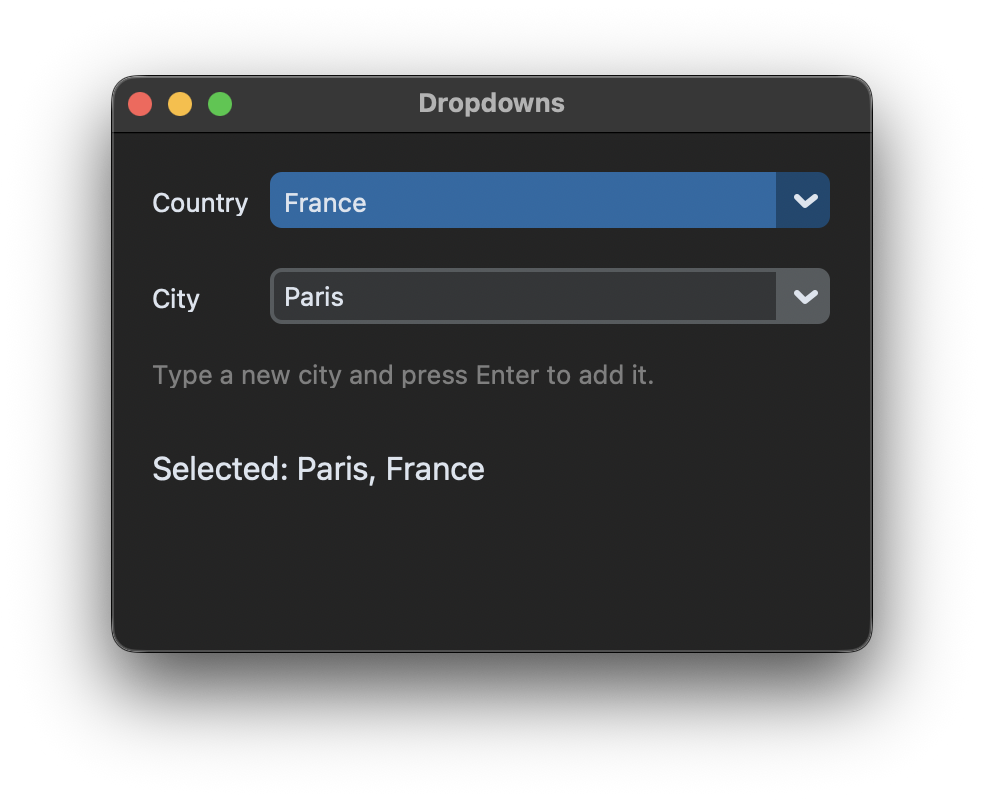
CTkOptionMenu and CTkComboBox
CustomTkinter has two widgets with a dropdown list. With a CTkOptionMenu the user can only choose one of the given values. A CTkComboBox also contains an entry, so the user can choose a value or type in a new one. Both get the list of values with the values argument, and both call their command with the chosen value:
self.country_menu = customtkinter.CTkOptionMenu(self, values=["Germany", "France", "Italy"],
                                                command=self.country_changed)

def country_changed(self, country):
    print("chosen:", country)
The current value is read with get() and set with set(). The first value of the list is selected at the beginning.
Dependent dropdowns
In this example the second dropdown shows the cities of the country that is selected in the first one. The cities are stored in a dictionary:
self.cities = {
    "Germany": ["Berlin", "Hamburg", "Munich"],
    "France": ["Paris", "Lyon", "Toulouse"],
    "Italy": ["Rome", "Milan", "Naples"],
}
When the country changes, we pass the new list of cities to the combobox with configure(values=...) and select the first city with set():
    def country_changed(self, country):
        cities = self.cities[country]
        self.city_box.configure(values=cities)
        self.city_box.set(cities[0])
        self.show_selection()
Note that set() does not call the command of the widget, only a choice by the user does. If something should happen after set(), like show_selection() here, call it yourself.
Add values
Text that is typed into the combobox is not added to its values automatically. To add a new city with the Enter key, we bind <Return> and add the text to the list of the current country:
self.city_box.bind("<Return>", self.add_city)

    def add_city(self, event=None):
        country = self.country_menu.get()
        city = self.city_box.get().strip()
        if city and city not in self.cities[country]:
            self.cities[country].append(city)
            self.city_box.configure(values=self.cities[country])
        self.show_selection()
Since version 6.0, index() returns the position of the current value in the list, for example self.city_box.index() returns 0 for the first city. If the value is not in the list, a ValueError is raised.
Full code
import customtkinter


class App(customtkinter.CTk):
    def __init__(self):
        super().__init__()

        self.title("Dropdowns")
        self.geometry("380x260")
        self.grid_columnconfigure(1, weight=1)

        self.cities = {
            "Germany": ["Berlin", "Hamburg", "Munich"],
            "France": ["Paris", "Lyon", "Toulouse"],
            "Italy": ["Rome", "Milan", "Naples"],
        }

        # CTkOptionMenu: the user can only choose one of the values
        self.country_label = customtkinter.CTkLabel(self, text="Country")
        self.country_label.grid(row=0, column=0, padx=(20, 10), pady=(20, 10), sticky="w")
        self.country_menu = customtkinter.CTkOptionMenu(self, values=list(self.cities),
                                                        command=self.country_changed)
        self.country_menu.grid(row=0, column=1, padx=(0, 20), pady=(20, 10), sticky="ew")

        # CTkComboBox: the user can choose a value or type a new one
        self.city_label = customtkinter.CTkLabel(self, text="City")
        self.city_label.grid(row=1, column=0, padx=(20, 10), pady=10, sticky="w")
        self.city_box = customtkinter.CTkComboBox(self, values=self.cities["Germany"],
                                                  command=self.city_changed)
        self.city_box.grid(row=1, column=1, padx=(0, 20), pady=10, sticky="ew")
        self.city_box.bind("<Return>", self.add_city)

        self.hint_label = customtkinter.CTkLabel(self, text="Type a new city and press Enter to add it.",
                                                 text_color="gray50")
        self.hint_label.grid(row=2, column=0, columnspan=2, padx=20, pady=0, sticky="w")

        self.result_label = customtkinter.CTkLabel(self, text="", font=customtkinter.CTkFont(size=16))
        self.result_label.grid(row=3, column=0, columnspan=2, padx=20, pady=20, sticky="w")

        self.show_selection()

    def country_changed(self, country):
        # new values for the second dropdown
        cities = self.cities[country]
        self.city_box.configure(values=cities)
        self.city_box.set(cities[0])
        self.show_selection()

    def city_changed(self, city):
        self.show_selection()

    def add_city(self, event=None):
        country = self.country_menu.get()
        city = self.city_box.get().strip()
        if city and city not in self.cities[country]:
            self.cities[country].append(city)
            self.city_box.configure(values=self.cities[country])
        self.show_selection()

    def show_selection(self):
        country = self.country_menu.get()
        city = self.city_box.get()
        self.result_label.configure(text=f"Selected: {city}, {country}")


app = App()
app.mainloop()
Read-only combobox
With state="readonly" the combobox looks like a combobox, but the user can't type into it anymore. Its value can still be changed with set():
self.city_box = customtkinter.CTkComboBox(self, values=["Berlin", "Hamburg"], state="readonly")
Pass more arguments to the command
The command only gets the chosen value. If you need more information in the function, for example which of several dropdowns was used, you can use a lambda:
menu_1 = customtkinter.CTkOptionMenu(self, values=["a", "b"], command=lambda value: self.changed("menu 1", value))
menu_2 = customtkinter.CTkOptionMenu(self, values=["a", "b"], command=lambda value: self.changed("menu 2", value))
Long lists
The dropdown list is a menu without a scrollbar, so it is not suited for hundreds of values. For long lists, a CTkScrollableFrame with buttons, see Scrollable Frames, or a table, see Tables with Treeview, works better.