3. Images and Icons
CTkImage
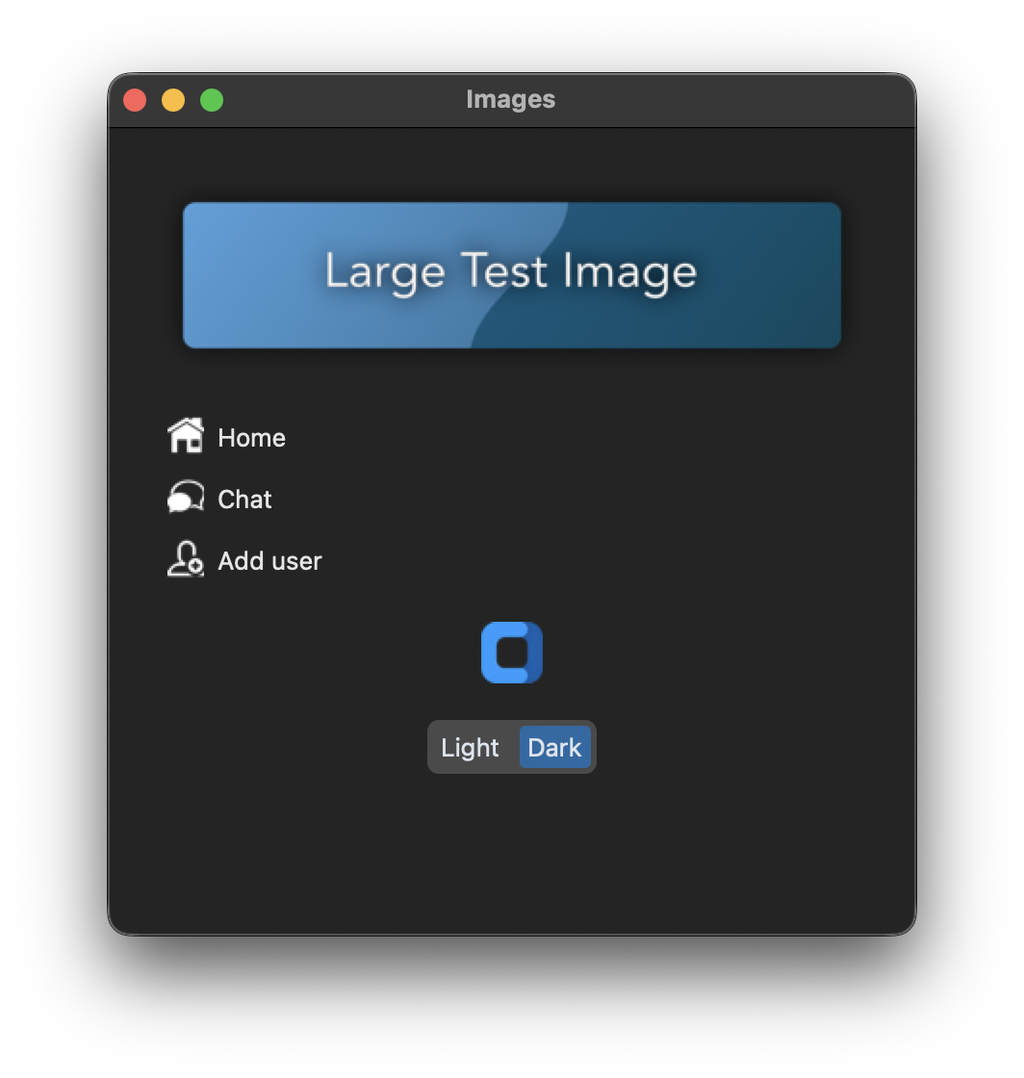
Images are shown in CustomTkinter with the CTkImage class. It needs images from the Pillow library, which you can install with pip install pillow. Unlike a tkinter PhotoImage, a CTkImage is scaled on HighDPI displays, so it stays sharp. The size is given without scaling, like the size of the widgets:
import customtkinter
from PIL import Image

self.banner_image = customtkinter.CTkImage(Image.open("large_test_image.png"), size=(380, 114))
self.banner_label = customtkinter.CTkLabel(self, text="", image=self.banner_image)
The label gets text="", otherwise it would show the default text "CTkLabel" next to the image.
The images in this tutorial are from the examples folder of CustomTkinter. Put them in a folder assets next to your script. To find the folder also when the program is started from another directory, the path is built from the location of the script:
IMAGES = os.path.join(os.path.dirname(os.path.abspath(__file__)), "assets")
Images for light and dark mode
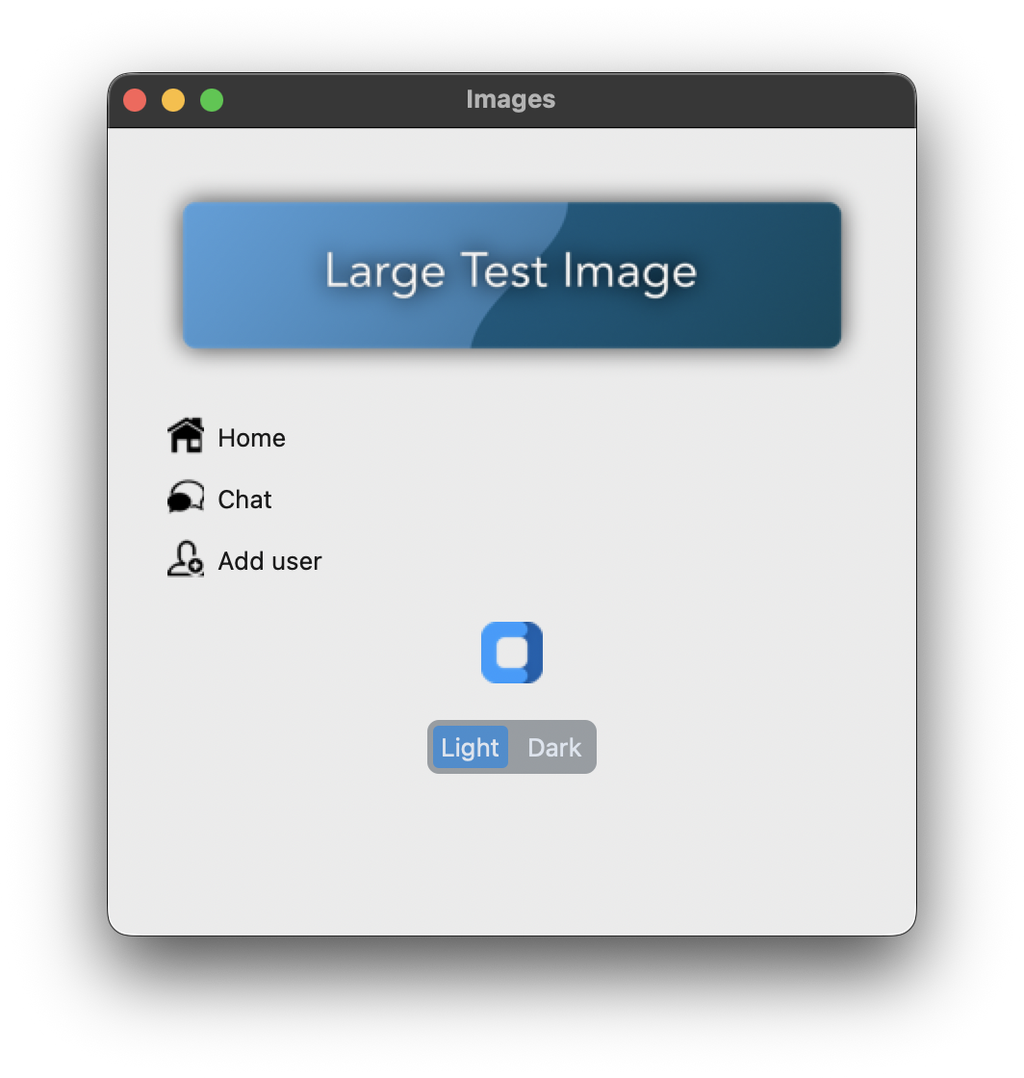
Icons that are dark on a light background are hard to see in dark mode. Therefore a CTkImage can have two images, light_image for light mode and dark_image for dark mode. When the appearance mode changes, the widget switches the image automatically. Both images must have the same size:
def load_icon(name, size=(20, 20)):
    # name_dark.png is the dark icon for light mode, name_light.png the light icon for dark mode
    return customtkinter.CTkImage(light_image=Image.open(os.path.join(IMAGES, f"{name}_dark.png")),
                                  dark_image=Image.open(os.path.join(IMAGES, f"{name}_light.png")),
                                  size=size)
Icons on buttons
A button can show an image and a text. With compound you set where the image is placed relative to the text ("left", "right", "top" or "bottom"), and anchor="w" aligns the content of the button to the left:
button = customtkinter.CTkButton(self, text="Home", image=self.home_icon, compound="left", anchor="w",
                                 fg_color="transparent", text_color=("gray10", "gray90"),
                                 hover_color=("gray75", "gray25"))
With a transparent fg_color the button only gets a background color when the mouse is over it, which is a common style for navigation buttons.
For a button that only shows an image, set the text to an empty string and choose a width and height that fit the image:
self.logo_button = customtkinter.CTkButton(self, text="", image=self.logo_image, width=48, height=48,
                                           fg_color="transparent", hover_color=("gray75", "gray25"))
Change images
A CTkImage can be changed after it was created. If you change its size with configure(size=...), every widget that shows this image is updated. In this example a click on the logo button switches between small and large icons:
    def toggle_icons(self):
        # change the size of the icons, all buttons that use them are updated
        self.large_icons = not self.large_icons
        size = (28, 28) if self.large_icons else (20, 20)
        for icon in (self.home_icon, self.chat_icon, self.add_user_icon):
            icon.configure(size=size)
To show another image in a widget, pass a new CTkImage with configure(image=...).
Full code
import os
import customtkinter
from PIL import Image

IMAGES = os.path.join(os.path.dirname(os.path.abspath(__file__)), "assets")


def load_icon(name, size=(20, 20)):
    # name_dark.png is the dark icon for light mode, name_light.png the light icon for dark mode
    return customtkinter.CTkImage(light_image=Image.open(os.path.join(IMAGES, f"{name}_dark.png")),
                                  dark_image=Image.open(os.path.join(IMAGES, f"{name}_light.png")),
                                  size=size)


class App(customtkinter.CTk):
    def __init__(self):
        super().__init__()

        self.title("Images")
        self.geometry("420x420")
        self.grid_columnconfigure(0, weight=1)

        # one image for both modes, shown in a label
        self.banner_image = customtkinter.CTkImage(Image.open(os.path.join(IMAGES, "large_test_image.png")),
                                                   size=(380, 114))
        self.banner_label = customtkinter.CTkLabel(self, text="", image=self.banner_image)
        self.banner_label.grid(row=0, column=0, padx=20, pady=(20, 10))

        # buttons with an icon left of the text
        self.home_icon = load_icon("home")
        self.chat_icon = load_icon("chat")
        self.add_user_icon = load_icon("add_user")

        self.buttons = []
        for row, (text, icon) in enumerate([("Home", self.home_icon), ("Chat", self.chat_icon),
                                            ("Add user", self.add_user_icon)], start=1):
            button = customtkinter.CTkButton(self, text=text, image=icon, compound="left", anchor="w",
                                             fg_color="transparent", text_color=("gray10", "gray90"),
                                             hover_color=("gray75", "gray25"))
            button.grid(row=row, column=0, padx=20, pady=2, sticky="ew")
            self.buttons.append(button)

        # a button that shows only an image
        self.logo_image = customtkinter.CTkImage(Image.open(os.path.join(IMAGES, "CustomTkinter_logo_single.png")),
                                                 size=(32, 32))
        self.logo_button = customtkinter.CTkButton(self, text="", image=self.logo_image, width=48, height=48,
                                                   fg_color="transparent", hover_color=("gray75", "gray25"),
                                                   command=self.toggle_icons)
        self.logo_button.grid(row=4, column=0, padx=20, pady=(10, 0))

        self.mode_button = customtkinter.CTkSegmentedButton(self, values=["Light", "Dark"],
                                                            command=self.set_appearance)
        self.mode_button.grid(row=5, column=0, padx=20, pady=(10, 20))
        self.mode_button.set(customtkinter.get_appearance_mode())

        self.large_icons = False

    def toggle_icons(self):
        # change the size of the icons, all buttons that use them are updated
        self.large_icons = not self.large_icons
        size = (28, 28) if self.large_icons else (20, 20)
        for icon in (self.home_icon, self.chat_icon, self.add_user_icon):
            icon.configure(size=size)

    def set_appearance(self, mode):
        customtkinter.set_appearance_mode(mode)


app = App()
app.mainloop()
Background image
A background image is a CTkLabel with an image, which is placed with place so that it fills the window. Other widgets are then placed on top of it:
self.bg_image = customtkinter.CTkImage(Image.open("bg_gradient.jpg"), size=(800, 600))
self.bg_label = customtkinter.CTkLabel(self, text="", image=self.bg_image)
self.bg_label.place(relx=0, rely=0, relwidth=1, relheight=1)
Note that widgets on top of the image can't be transparent. The color "transparent" means the color of the master widget, not the pixels behind the widget. So a frame or label on the image always has a solid background. The example example_background_image.py shows a login form on top of a background image.
Common errors
_tkinter.TclError: image "pyimage1" doesn't exist
This error appears when a program creates more than one CTk or tkinter.Tk window. Every one of these windows has its own Tcl interpreter, and an image created in one of them can't be used in another. Only create one CTk window and use CTkToplevel for all other windows, see Extra windows with CTkToplevel.
ValueError: CTkImage: light_image must be instance if PIL.Image.Image
A CTkImage needs an image that was opened with Pillow, not a file path. Use Image.open(path) instead of the path.
CTkLabel Warning: Given image is not CTkImage
The widget got a tkinter PhotoImage or a ImageTk.PhotoImage. These are shown, but not scaled on HighDPI displays. Use a CTkImage instead.