4. Scaling and High DPI
Automatic scaling
Many displays have a scaling of 125%, 150% or 200% in the system settings, so that text and buttons are not too small. CustomTkinter adapts to this automatically:
- Windows: The app is made DPI aware, and every widget and the window size are multiplied with the scaling of the display. When the window is moved to a display with another scaling, the app is scaled again.
- macOS: The system scales the app for Retina displays, CustomTkinter works with a factor of 1.
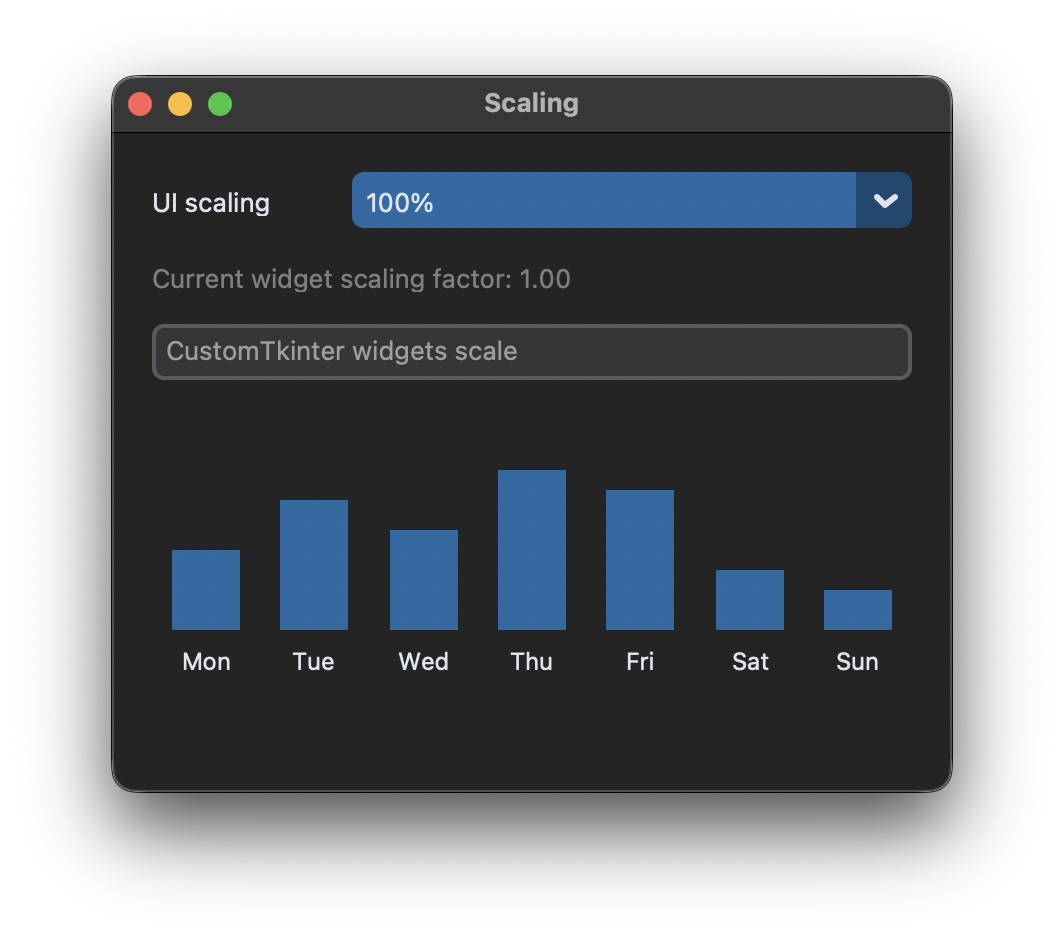
- Linux: The scaling of the display is not detected, the factor is 1. Users with a HiDPI display need a setting in the app, like the menu in this example.
All sizes in CustomTkinter, like width, height, corner_radius, the font size and the size of the window in geometry(), are given for a scaling of 100% and are multiplied with the scaling factor.
Scaling setting in the app
Some users want everything a bit larger or smaller. set_widget_scaling() changes the size of all widgets and texts while the app is running:
def change_scaling(self, value):
    customtkinter.set_widget_scaling(int(value.replace("%", "")) / 100)
The value is multiplied with the scaling of the display, so 125% on a display with 150% gives a factor of 1.875.
set_window_scaling() does the same for the size of the window that is set with geometry(), minsize() and maxsize(). In this example only the widgets are scaled, so the window keeps its size and the user can make it larger if needed.
tkinter widgets
tkinter widgets like the Canvas don't know the scaling of CustomTkinter, their sizes and coordinates are in real pixels. To draw the bar chart in the right size, all values are multiplied with the current scaling factor:
scaling = customtkinter.ScalingTracker.get_widget_scaling(self)
font = (theme["CTkFont"]["family"], -round(12 * scaling))

self.canvas.configure(height=round(130 * scaling), bg=theme["CTk"]["fg_color"][i])
self.canvas.create_rectangle(x, (105 - value) * scaling, x + bar_width, 105 * scaling,
                             fill=bar_color, outline="")
A negative font size is a size in pixels in tkinter, like the sizes in CustomTkinter.
When the scaling changes, the chart has to be drawn again. ScalingTracker.add_widget() adds a function that is called with the new widget and window scaling, every time one of them changes:
customtkinter.ScalingTracker.add_widget(self.draw_chart, self)
When the window is closed, the function is removed with ScalingTracker.remove_widget(). The chart also follows the appearance mode like in Dark Mode, and it is drawn again when the canvas changes its size, with the <Configure> event.
Full code
import tkinter
import customtkinter

VISITORS = [("Mon", 40), ("Tue", 65), ("Wed", 50), ("Thu", 80), ("Fri", 70), ("Sat", 30), ("Sun", 20)]


class App(customtkinter.CTk):
    def __init__(self):
        super().__init__()

        self.title("Scaling")
        self.geometry("420x330")
        self.grid_columnconfigure(1, weight=1)

        self.scaling_label = customtkinter.CTkLabel(self, text="UI scaling")
        self.scaling_label.grid(row=0, column=0, padx=20, pady=(20, 10), sticky="w")
        self.scaling_menu = customtkinter.CTkOptionMenu(self, values=["80%", "90%", "100%", "110%", "125%", "150%"],
                                                        command=self.change_scaling)
        self.scaling_menu.grid(row=0, column=1, padx=20, pady=(20, 10), sticky="ew")
        self.scaling_menu.set("100%")

        self.info_label = customtkinter.CTkLabel(self, text="", text_color="gray50")
        self.info_label.grid(row=1, column=0, columnspan=2, padx=20, pady=0, sticky="w")

        self.entry = customtkinter.CTkEntry(self, placeholder_text="CustomTkinter widgets scale")
        self.entry.grid(row=2, column=0, columnspan=2, padx=20, pady=10, sticky="ew")

        # a tkinter canvas doesn't scale, so we draw its content with the scaling factor
        self.canvas = tkinter.Canvas(self, highlightthickness=0)
        self.canvas.grid(row=3, column=0, columnspan=2, padx=20, pady=(10, 20), sticky="ew")
        self.canvas.bind("<Configure>", self.draw_chart)
        customtkinter.ScalingTracker.add_widget(self.draw_chart, self)
        customtkinter.AppearanceModeTracker.add(self.draw_chart)
        self.draw_chart()

    def change_scaling(self, value):
        customtkinter.set_widget_scaling(int(value.replace("%", "")) / 100)

    def draw_chart(self, *args):
        # the factor contains the scaling of the display and the scaling set by the app
        scaling = customtkinter.ScalingTracker.get_widget_scaling(self)
        self.info_label.configure(text=f"Current widget scaling factor: {scaling:.2f}")

        i = 0 if customtkinter.get_appearance_mode() == "Light" else 1
        theme = customtkinter.ThemeManager.theme
        bar_color = theme["CTkButton"]["fg_color"][i]
        text_color = theme["CTkLabel"]["text_color"][i]
        font = (theme["CTkFont"]["family"], -round(12 * scaling))

        self.canvas.configure(height=round(130 * scaling), bg=theme["CTk"]["fg_color"][i])
        self.canvas.delete("all")
        step = self.canvas.winfo_width() / len(VISITORS)  # the bars are spread over the whole width
        bar_width = min(34 * scaling, step * 0.7)
        for n, (day, value) in enumerate(VISITORS):
            x = n * step + (step - bar_width) / 2
            self.canvas.create_rectangle(x, (105 - value) * scaling, x + bar_width, 105 * scaling,
                                         fill=bar_color, outline="")
            self.canvas.create_text(x + bar_width / 2, 120 * scaling, text=day, fill=text_color, font=font)

    def destroy(self):
        customtkinter.ScalingTracker.remove_widget(self.draw_chart, self)
        customtkinter.AppearanceModeTracker.remove(self.draw_chart)
        super().destroy()


app = App()
app.mainloop()
Turn off the automatic scaling
If the app should not be scaled on Windows, turn off the automatic scaling before the first window is created:
customtkinter.deactivate_automatic_dpi_awareness()
Then Windows scales the whole window like an image, and the app looks blurry on displays with more than 100%.
Common errors
The app is blurry on Windows
The automatic scaling only works if the first window is a customtkinter.CTk. With a tkinter.Tk window, or after deactivate_automatic_dpi_awareness(), Windows scales the app like an image.
The window is too small after changing the scaling
set_widget_scaling() doesn't change the size of the window. Call set_window_scaling() with the same value as well, or let the user resize the window.
Canvas drawings and images are too small
tkinter widgets and tkinter.PhotoImage are not scaled. Multiply sizes on a canvas with the scaling factor like above, and use CTkImage for images, see Images and Icons.