2. Colors and Custom Themes
Colors of single widgets
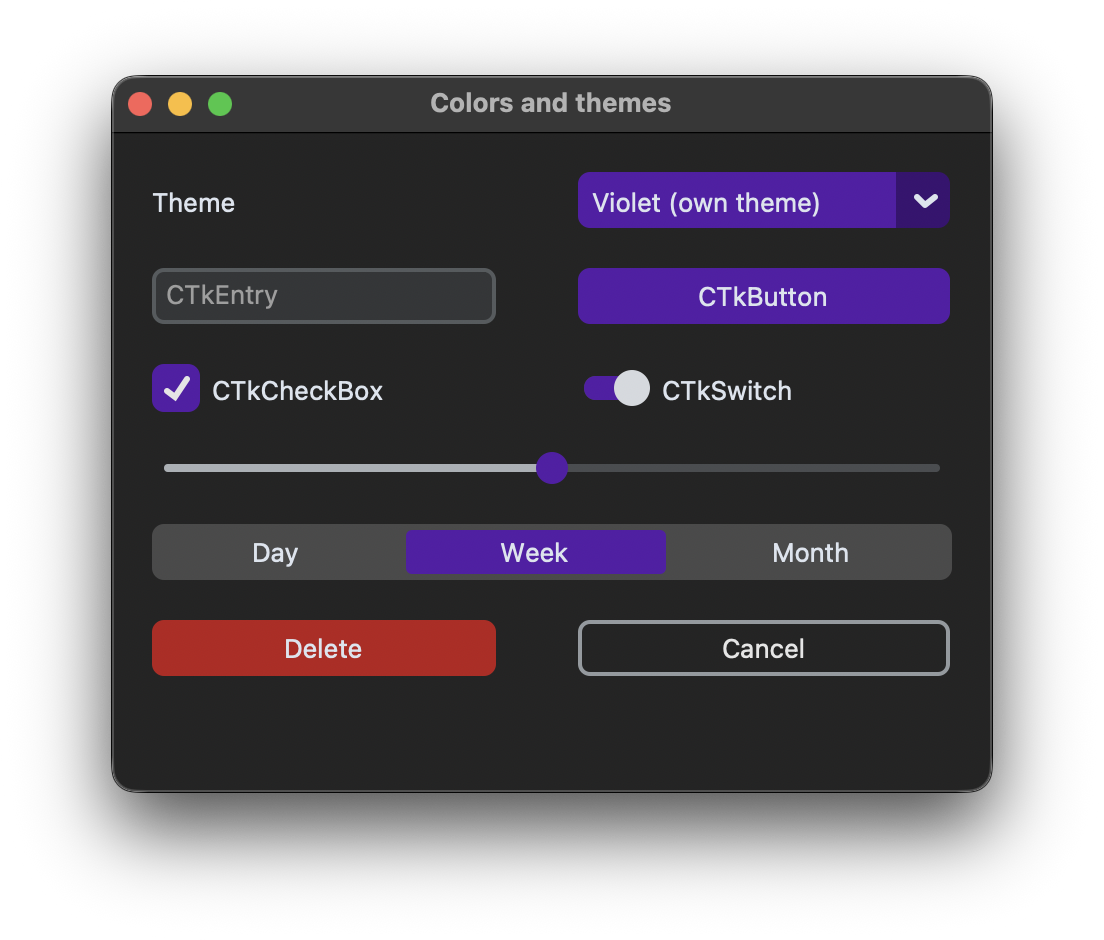
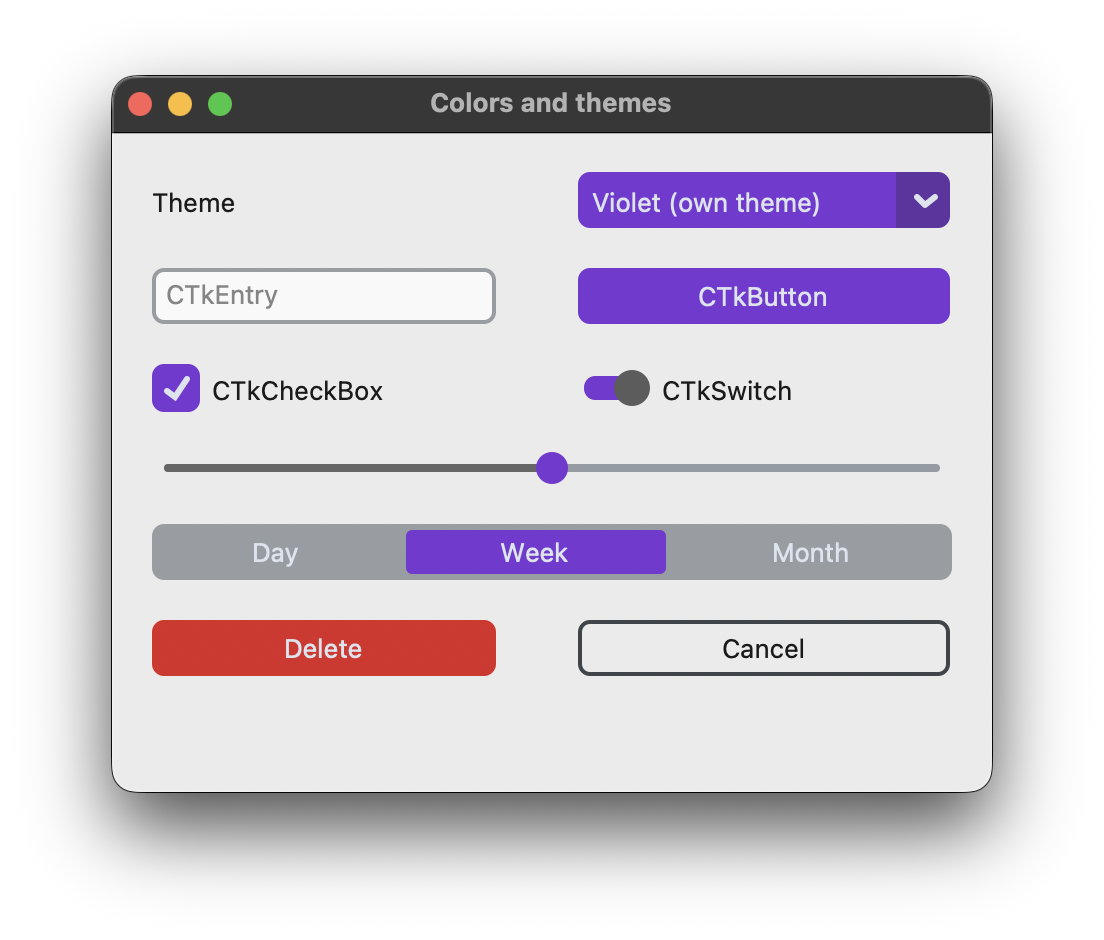
Every color of a widget can be set with an argument, the most important ones are fg_color for the main color, hover_color, text_color and border_color. A color is a name like "red", a hex string like "#DC2626" or a tuple with a color for light mode and one for dark mode:
self.delete_button = customtkinter.CTkButton(self, text="Delete",
                                             fg_color=("#DC2626", "#B91C1C"),
                                             hover_color=("#B91C1C", "#7F1D1D"))
With fg_color="transparent" a widget has no background of its own, the color of its master shows through. Together with a border this gives a button with only an outline:
self.cancel_button = customtkinter.CTkButton(self, text="Cancel", fg_color="transparent",
                                             border_width=2, text_color=("gray10", "gray90"))
Which arguments a widget has is listed in its documentation, for example CTkButton.
Colors of the theme
All colors that are not set are taken from the theme. The current theme is stored in ThemeManager.theme, a dictionary with one entry per widget. To give your own widgets the same accent color as the buttons, read it from there:
accent = customtkinter.ThemeManager.theme["CTkButton"]["fg_color"]  # ["#7837D4", "#561CA8"]
self.badge = customtkinter.CTkLabel(self, text="New", fg_color=accent, corner_radius=6)
The colors are lists with the light mode color at index 0 and the dark mode color at index 1, so they can be passed to a widget directly. For tkinter widgets, pick the right one with the appearance mode, see Dark Mode.
Own theme file
If many widgets should get other colors, an own theme is easier than setting the colors one by one. A theme is a JSON file with one section per widget. The simplest way to create one is to copy a built-in theme, like blue.json, and change the colors. This is the button section of the theme violet.json that is used in this tutorial:
"CTkButton": {
  "corner_radius": 6,
  "border_width": 0,
  "fg_color": ["#7837D4", "#561CA8"],
  "hover_color": ["#6133A2", "#3A1272"],
  "border_color": ["#3E454A", "#949A9F"],
  "text_color": ["#DCE4EE", "#DCE4EE"],
  "text_color_disabled": ["gray74", "gray60"]
},
In violet.json only the blue colors of blue.json were replaced with violet ones, for all widgets that use the accent color. A theme can also change the corner radius, the border width and the default font, see Fonts.
The theme is loaded with set_default_color_theme() and the path of the file. It must be loaded before any widget is created, because every widget reads its colors from the theme when it is created:
ASSETS = os.path.join(os.path.dirname(os.path.abspath(__file__)), "assets")

customtkinter.set_default_color_theme(os.path.join(ASSETS, "violet.json"))
The path is built from the location of the script, so that the file is also found when the program is started from another folder. Put violet.json into a folder assets next to your script.
Switch the theme while the app is running
Because the widgets keep the colors they got when they were created, a new theme only affects new widgets. The simplest way to switch the theme is to close the window and open it again. The window stores the chosen theme in next_theme and closes itself:
def change_theme(self, theme_name):
    self.next_theme = theme_name
    self.destroy()
The main loop of the program then loads the new theme and creates a new window. When the user closes the window, next_theme is None and the loop ends:
theme_name = "Violet (own theme)"
while theme_name is not None:
    customtkinter.set_default_color_theme(THEMES[theme_name])
    app = App(theme_name)
    app.mainloop()
    theme_name = app.next_theme
Everything that should be kept, like the text in an entry, has to be passed to the new window. Usually the theme is a setting that is chosen once, so it is also fine to apply it only at the next start of the app.
Full code
import os
import customtkinter

ASSETS = os.path.join(os.path.dirname(os.path.abspath(__file__)), "assets")

# a built-in theme is loaded by its name, an own theme by the path to its .json file
THEMES = {
    "Violet (own theme)": os.path.join(ASSETS, "violet.json"),
    "Blue": "blue",
    "Dark blue": "dark-blue",
    "Green": "green",
    "Gold": "gold",
}


class App(customtkinter.CTk):
    def __init__(self, theme_name):
        super().__init__()

        self.title("Colors and themes")
        self.geometry("440x330")
        self.grid_columnconfigure((0, 1), weight=1)
        self.next_theme = None

        self.theme_label = customtkinter.CTkLabel(self, text="Theme")
        self.theme_label.grid(row=0, column=0, padx=20, pady=(20, 10), sticky="w")
        self.theme_menu = customtkinter.CTkOptionMenu(self, values=list(THEMES), command=self.change_theme)
        self.theme_menu.grid(row=0, column=1, padx=20, pady=(20, 10), sticky="ew")
        self.theme_menu.set(theme_name)

        # these widgets get all their colors from the theme
        self.entry = customtkinter.CTkEntry(self, placeholder_text="CTkEntry")
        self.entry.grid(row=1, column=0, padx=20, pady=10, sticky="ew")
        self.button = customtkinter.CTkButton(self, text="CTkButton")
        self.button.grid(row=1, column=1, padx=20, pady=10, sticky="ew")
        self.checkbox = customtkinter.CTkCheckBox(self, text="CTkCheckBox")
        self.checkbox.grid(row=2, column=0, padx=20, pady=10, sticky="w")
        self.checkbox.select()
        self.switch = customtkinter.CTkSwitch(self, text="CTkSwitch")
        self.switch.grid(row=2, column=1, padx=20, pady=10, sticky="w")
        self.switch.select()
        self.slider = customtkinter.CTkSlider(self)
        self.slider.grid(row=3, column=0, columnspan=2, padx=20, pady=10, sticky="ew")
        self.segmented_button = customtkinter.CTkSegmentedButton(self, values=["Day", "Week", "Month"])
        self.segmented_button.grid(row=4, column=0, columnspan=2, padx=20, pady=10, sticky="ew")
        self.segmented_button.set("Week")

        # own colors for single widgets: a tuple has a color for light and one for dark mode
        self.delete_button = customtkinter.CTkButton(self, text="Delete",
                                                     fg_color=("#DC2626", "#B91C1C"),
                                                     hover_color=("#B91C1C", "#7F1D1D"))
        self.delete_button.grid(row=5, column=0, padx=20, pady=(10, 20), sticky="ew")
        self.cancel_button = customtkinter.CTkButton(self, text="Cancel", fg_color="transparent",
                                                     border_width=2, text_color=("gray10", "gray90"))
        self.cancel_button.grid(row=5, column=1, padx=20, pady=(10, 20), sticky="ew")

    def change_theme(self, theme_name):
        # widgets get their colors from the theme when they are created,
        # so the window is closed and opened again with the new theme
        self.next_theme = theme_name
        self.destroy()


theme_name = "Violet (own theme)"
while theme_name is not None:
    customtkinter.set_default_color_theme(THEMES[theme_name])
    app = App(theme_name)
    app.mainloop()
    theme_name = app.next_theme
Common errors
The theme doesn't change the colors
set_default_color_theme() was called after the widgets were created. Call it at the beginning of the program, before the window is created.
FileNotFoundError: No such file or directory: 'violet.json'
A relative path is searched in the folder from which the program was started, not next to the script. Build the path from __file__ like above.
KeyError: 'CTkSegmentedButton'
The theme file has no section for this widget. Theme files that were made for an old version of CustomTkinter can miss sections of newer widgets. Copy the missing sections from a current built-in theme.
json.decoder.JSONDecodeError
The theme file is not valid JSON, often because of a comma after the last value of a section, or because of comments, which JSON doesn't allow.