1. Dark Mode
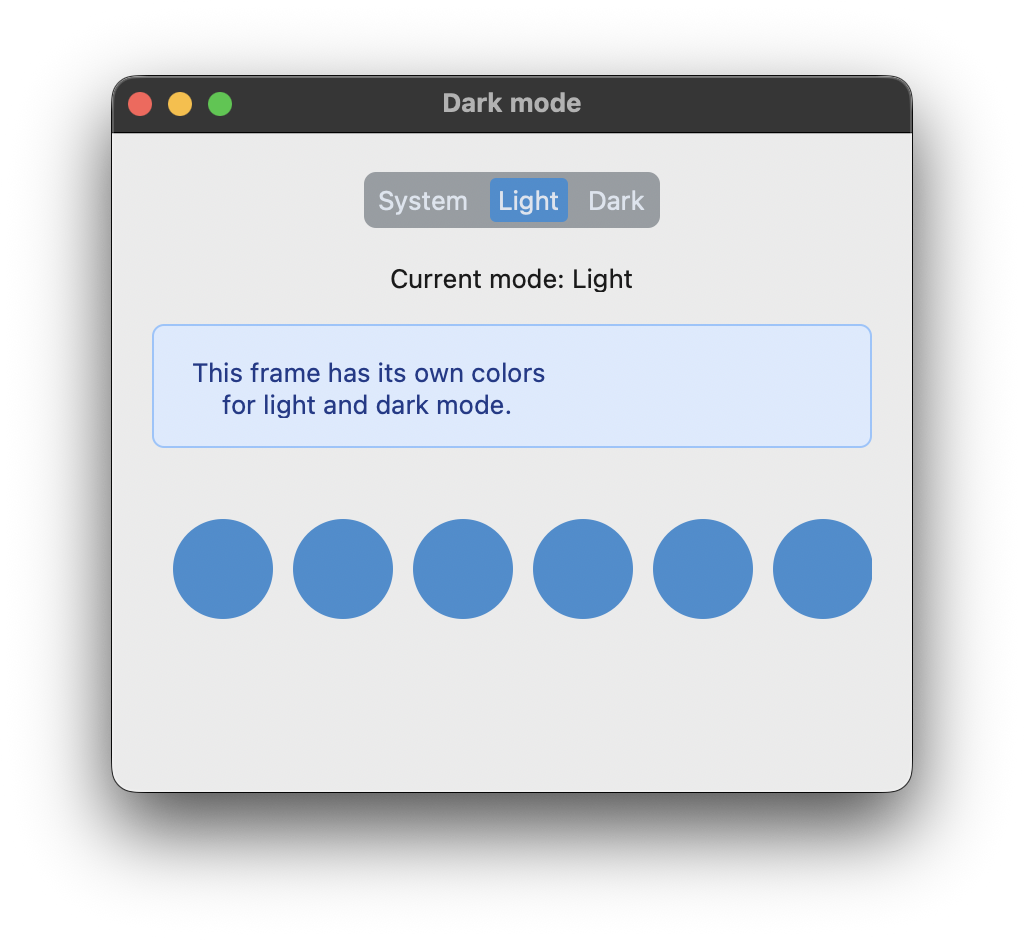
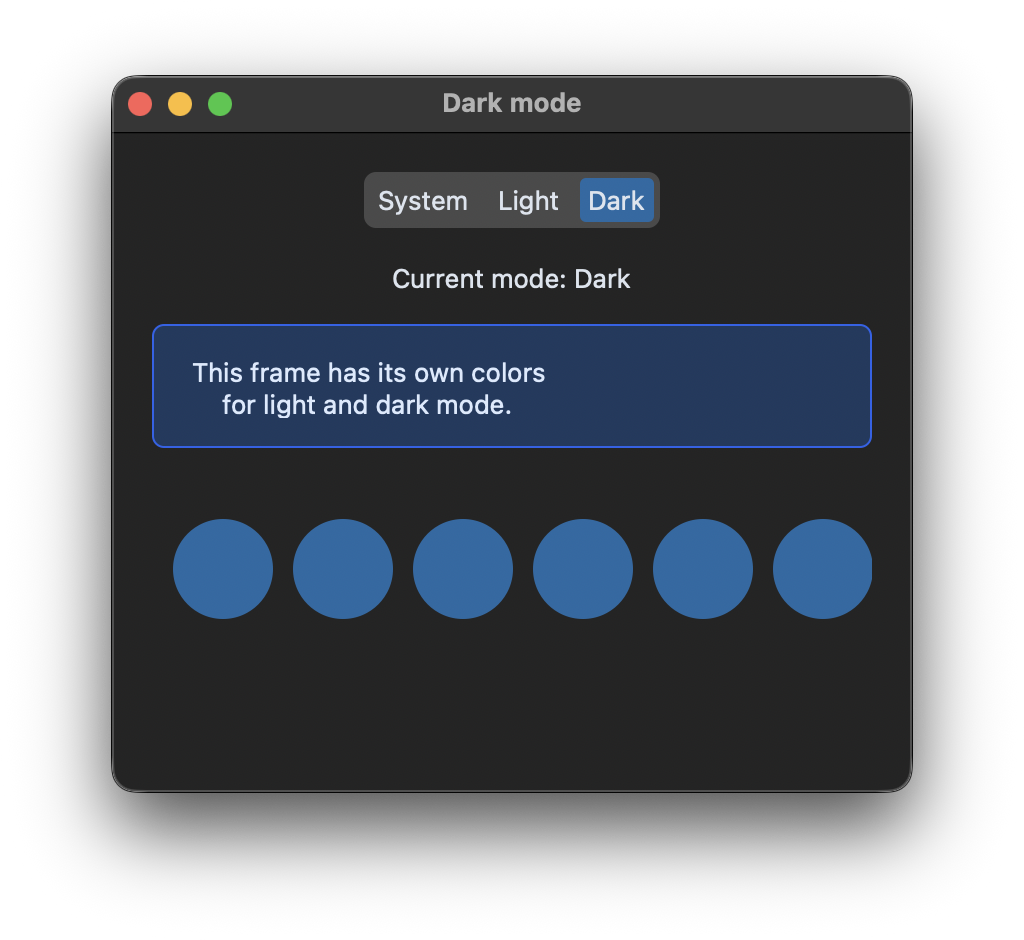
Appearance mode
Every CustomTkinter widget has a color for light mode and one for dark mode. Which one is used depends on the appearance mode, which is set for the whole app:
customtkinter.set_appearance_mode("system") # "light", "dark" or "system"
With "system" the app follows the setting of the operating system and changes automatically when the user changes it. get_appearance_mode() returns the mode that is currently used, which is always "Light" or "Dark", also in system mode. The appearance mode can be changed at any time, the widgets update immediately. More details are in the documentation of the appearance mode.
Switch the mode in the app
To let the user choose the mode, a CTkSegmentedButton with the three options works well. Its command gets the chosen value, which can be passed to set_appearance_mode directly:
self.mode_button = customtkinter.CTkSegmentedButton(self, values=["System", "Light", "Dark"],
                                                    command=self.change_mode)
self.mode_button.set("System")

def change_mode(self, mode):
    customtkinter.set_appearance_mode(mode)
Own colors for both modes
If you set your own colors, pass a tuple with a color for light mode and one for dark mode. Otherwise the color is the same in both modes, which often doesn't fit:
self.card = customtkinter.CTkFrame(self, fg_color=("#DBEAFE", "#1E3A5F"),
                                   border_width=1, border_color=("#93C5FD", "#2563EB"))
self.card_label = customtkinter.CTkLabel(self.card, text_color=("#1E3A8A", "#DBEAFE"),
                                         text="This frame has its own colors\nfor light and dark mode.")
For images and icons there is the same option, a CTkImage with a light_image and a dark_image, see Images and Icons.
tkinter widgets
tkinter widgets like the Canvas don't know the appearance mode, so their colors have to be set by hand. The AppearanceModeTracker calls all functions that were added to it when the mode changes. We add a method that sets the background of the canvas to the window color of the current theme and draws the content again:
customtkinter.AppearanceModeTracker.add(self.update_canvas)

def update_canvas(self, mode=None):
    i = 0 if customtkinter.get_appearance_mode() == "Light" else 1
    window_color = customtkinter.ThemeManager.theme["CTk"]["fg_color"][i]
    circle_color = ("#3B8ED0", "#1F6AA5")[i]

    self.canvas.configure(bg=window_color)
    ...
The colors in ThemeManager.theme are lists with the light mode color at index 0 and the dark mode color at index 1. When the window is destroyed, the method is removed from the tracker again with AppearanceModeTracker.remove.
The same way works for ttk widgets, see Tables with Treeview for an example, and for matplotlib charts, see Matplotlib in CustomTkinter.
Full code
import tkinter
import customtkinter

customtkinter.set_appearance_mode("system")


class App(customtkinter.CTk):
    def __init__(self):
        super().__init__()

        self.title("Dark mode")
        self.geometry("400x330")
        self.grid_columnconfigure(0, weight=1)

        self.mode_button = customtkinter.CTkSegmentedButton(self, values=["System", "Light", "Dark"],
                                                            command=self.change_mode)
        self.mode_button.grid(row=0, column=0, padx=20, pady=(20, 10))
        self.mode_button.set("System")

        self.mode_label = customtkinter.CTkLabel(self, text="")
        self.mode_label.grid(row=1, column=0, padx=20, pady=0)

        # a color can be a tuple: (color in light mode, color in dark mode)
        self.card = customtkinter.CTkFrame(self, fg_color=("#DBEAFE", "#1E3A5F"),
                                           border_width=1, border_color=("#93C5FD", "#2563EB"))
        self.card.grid(row=2, column=0, padx=20, pady=10, sticky="ew")
        self.card_label = customtkinter.CTkLabel(self.card, text_color=("#1E3A8A", "#DBEAFE"),
                                                 text="This frame has its own colors\nfor light and dark mode.")
        self.card_label.grid(row=0, column=0, padx=20, pady=15)

        # a tkinter canvas doesn't know the appearance mode, so we set its colors ourselves
        self.canvas = tkinter.Canvas(self, height=80, highlightthickness=0)
        self.canvas.grid(row=3, column=0, padx=20, pady=(10, 20), sticky="ew")
        customtkinter.AppearanceModeTracker.add(self.update_canvas)
        self.update_canvas()

        self.show_mode()

    def change_mode(self, mode):
        customtkinter.set_appearance_mode(mode)
        self.show_mode()

    def show_mode(self):
        self.mode_label.configure(text=f"Current mode: {customtkinter.get_appearance_mode()}")

    def update_canvas(self, mode=None):
        i = 0 if customtkinter.get_appearance_mode() == "Light" else 1
        window_color = customtkinter.ThemeManager.theme["CTk"]["fg_color"][i]
        circle_color = ("#3B8ED0", "#1F6AA5")[i]

        self.canvas.configure(bg=window_color)
        self.canvas.delete("all")
        for x in range(10, 400, 60):
            self.canvas.create_oval(x, 15, x + 50, 65, fill=circle_color, outline="")

    def destroy(self):
        customtkinter.AppearanceModeTracker.remove(self.update_canvas)
        super().destroy()


app = App()
app.mainloop()
Common errors
The system mode is always light on Linux
The system setting is read with the darkdetect package. On some Linux desktops it can't be detected, then the app uses light mode. Give the user a way to choose the mode in the app, like the segmented button above.
A tkinter widget keeps its colors
Only CustomTkinter widgets change their colors automatically. Update tkinter and ttk widgets with a function that is added to the AppearanceModeTracker, like above.