1. Long Tasks without Freezing
Why the window freezes
Everything in a CustomTkinter app runs in one loop, the mainloop(). It waits for events like clicks, calls the functions for them and redraws the window. As long as one of these functions runs, the loop can't do anything else. So a button command that takes ten seconds freezes the window for ten seconds, and Windows shows "Not Responding" in the title bar:
    def button_callback(self):
        for step in range(100):
            time.sleep(0.1)  # the window freezes until the loop is finished
            self.progress_bar.set(step / 100)  # the progress bar is not redrawn
There are two ways to avoid this. Things that should happen regularly, like updating a clock, are scheduled with after(). Work that really takes long, like a download or a calculation, runs in a thread.
Repeated updates with after()
after(ms, function) calls a function once after the given time in milliseconds and returns immediately. If the function schedules itself again, it runs regularly without blocking the window. This clock updates itself every second:
    def update_clock(self):
        self.clock_label.configure(text=time.strftime("%H:%M:%S"))
        self.after(1000, self.update_clock)  # run again in one second, the window stays responsive
Use this instead of a while True loop with time.sleep().
Work in a thread
A thread runs a function in parallel to the mainloop(). There is one important rule: only the main thread may change widgets. A thread that calls configure or set on a widget can cause errors or crashes, sometimes only on one operating system. Therefore the thread doesn't touch the widgets, it only puts messages into a queue.Queue:
def slow_task(progress_queue, stop_event):
    """Runs in a background thread. It never touches widgets, it only puts messages into the queue."""
    for step in range(1, STEPS + 1):
        if stop_event.is_set():
            progress_queue.put(("cancelled", step - 1))
            return
        time.sleep(0.1)  # stands for real work: a download, a calculation, copying files ...
        progress_queue.put(("progress", step))
    progress_queue.put(("done", STEPS))
The thread is started with daemon=True, so it doesn't keep the program alive after the window was closed:
thread = threading.Thread(target=slow_task, args=(self.progress_queue, self.stop_event), daemon=True)
thread.start()
self.check_queue()
Read the queue
The main thread looks into the queue every 100 ms with after(). It reads all new messages, updates the progress bar and the label, and stops checking when the task is finished:
    def check_queue(self):
        # read all messages from the thread, then look again in 100 ms
        while not self.progress_queue.empty():
            message, step = self.progress_queue.get()
            if message == "progress":
                self.progress_bar.set(step / STEPS)
                self.status_label.configure(text=f"Step {step} of {STEPS}")
            else:
                self.task_finished(message, step)
                return
        self.after(100, self.check_queue)
Cancel the task
A thread can't be stopped from outside. Instead, the thread checks a threading.Event in every step and ends itself when the event is set. The cancel button only sets the event:
    def cancel_task(self):
        self.stop_event.set()
While the task is running, the start button is disabled with configure(state="disabled"), so the task can't be started twice.
Full code
import queue
import threading
import time
import customtkinter

STEPS = 50


def slow_task(progress_queue, stop_event):
    """Runs in a background thread. It never touches widgets, it only puts messages into the queue."""
    for step in range(1, STEPS + 1):
        if stop_event.is_set():
            progress_queue.put(("cancelled", step - 1))
            return
        time.sleep(0.1)  # stands for real work: a download, a calculation, copying files ...
        progress_queue.put(("progress", step))
    progress_queue.put(("done", STEPS))


class App(customtkinter.CTk):
    def __init__(self):
        super().__init__()

        self.title("Long tasks")
        self.geometry("380x230")
        self.grid_columnconfigure((0, 1), weight=1)

        self.clock_label = customtkinter.CTkLabel(self, text="", font=customtkinter.CTkFont(size=24))
        self.clock_label.grid(row=0, column=0, columnspan=2, padx=20, pady=(20, 10))

        self.progress_bar = customtkinter.CTkProgressBar(self)
        self.progress_bar.grid(row=1, column=0, columnspan=2, padx=20, pady=10, sticky="ew")
        self.progress_bar.set(0)

        self.status_label = customtkinter.CTkLabel(self, text="Ready")
        self.status_label.grid(row=2, column=0, columnspan=2, padx=20, pady=0)

        self.start_button = customtkinter.CTkButton(self, text="Start", command=self.start_task)
        self.start_button.grid(row=3, column=0, padx=(20, 5), pady=20, sticky="ew")
        self.cancel_button = customtkinter.CTkButton(self, text="Cancel", command=self.cancel_task, state="disabled")
        self.cancel_button.grid(row=3, column=1, padx=(5, 20), pady=20, sticky="ew")

        self.progress_queue = queue.Queue()
        self.stop_event = threading.Event()
        self.update_clock()

    def update_clock(self):
        self.clock_label.configure(text=time.strftime("%H:%M:%S"))
        self.after(1000, self.update_clock)  # run again in one second, the window stays responsive

    def start_task(self):
        self.start_button.configure(state="disabled")
        self.cancel_button.configure(state="normal")
        self.progress_bar.set(0)
        self.status_label.configure(text="Working ...")
        self.stop_event.clear()

        thread = threading.Thread(target=slow_task, args=(self.progress_queue, self.stop_event), daemon=True)
        thread.start()
        self.check_queue()

    def check_queue(self):
        # read all messages from the thread, then look again in 100 ms
        while not self.progress_queue.empty():
            message, step = self.progress_queue.get()
            if message == "progress":
                self.progress_bar.set(step / STEPS)
                self.status_label.configure(text=f"Step {step} of {STEPS}")
            else:
                self.task_finished(message, step)
                return
        self.after(100, self.check_queue)

    def cancel_task(self):
        self.stop_event.set()

    def task_finished(self, message, step):
        if message == "done":
            self.status_label.configure(text="Done.")
        else:
            self.status_label.configure(text=f"Cancelled after step {step}.")
        self.start_button.configure(state="normal")
        self.cancel_button.configure(state="disabled")


app = App()
app.mainloop()
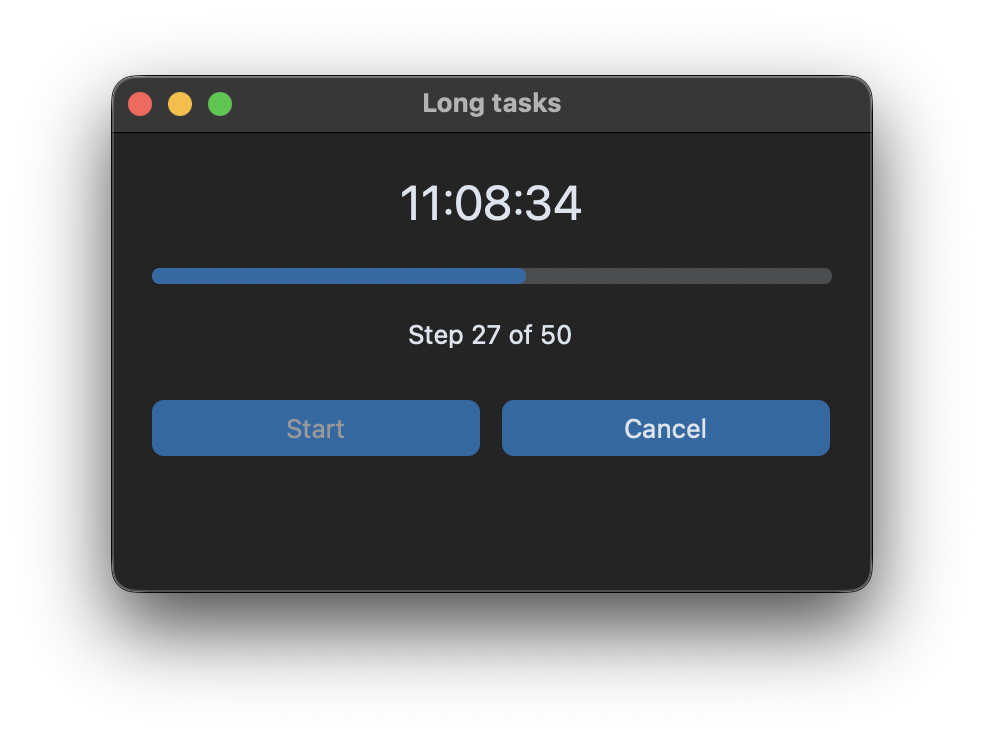
The clock keeps running while the task is working, which shows that the window stays responsive.
Common errors
RuntimeError: main thread is not in main loop
A thread changed a widget or called a tkinter function. Send the data to the main thread with a queue like above. The same is true for errors like Tcl_AsyncDelete: async handler deleted by the wrong thread.
The progress bar doesn't move in a loop
The loop runs in the main thread and blocks the mainloop(), so the window is not redrawn until the loop is finished. Calling self.update() in the loop redraws the window, but then clicks are also handled in the middle of your loop, which leads to strange behavior, for example when the button is clicked again. Move the loop into a thread.
The function runs immediately instead of after the delay
The function was called instead of passed: self.after(1000, self.update_clock()). Write self.after(1000, self.update_clock) without brackets.