1. Packaging with PyInstaller
The app
In this tutorial we package a small image viewer into a program that runs without Python. The app shows the images of a folder images and has its own window icon, so it has the two typical problems of packaging: files that have to be included, and paths that must be correct after packaging. The project looks like this:
image_viewer/
├── app.py
├── icon.ico
├── icon.png
└── images/
    ├── gradient.jpg
    ├── logo.png
    └── mountains.png
The short version of how PyInstaller works is also in the Packaging documentation.
Paths with resource_path
When the app runs as a packaged program, the files are not where they were during development. PyInstaller unpacks them into a folder, whose path is stored in sys._MEIPASS. With --onefile this is a temporary folder that is created on every start, with --onedir it is the folder _internal next to the executable. During development sys._MEIPASS doesn't exist, then we use the folder of the script:
def resource_path(relative_path):
    # PyInstaller unpacks the files to sys._MEIPASS, during development use the script folder
    base_path = getattr(sys, "_MEIPASS", os.path.dirname(os.path.abspath(__file__)))
    return os.path.join(base_path, relative_path)
Every file that belongs to the app is loaded with resource_path, for example resource_path("icon.ico") or resource_path("images"). A path like "images/logo.png" would be relative to the current working directory, which is often not the folder of the program, for example when it is started from a shortcut.
Full code
import os
import sys
import tkinter
import customtkinter
from PIL import Image


def resource_path(relative_path):
    # PyInstaller unpacks the files to sys._MEIPASS, during development use the script folder
    base_path = getattr(sys, "_MEIPASS", os.path.dirname(os.path.abspath(__file__)))
    return os.path.join(base_path, relative_path)


class App(customtkinter.CTk):
    def __init__(self):
        super().__init__()

        self.title("Image Viewer")
        self.geometry("520x420")
        self.set_icon()
        self.grid_columnconfigure((0, 1), weight=1)
        self.grid_rowconfigure(0, weight=1)

        self.image_folder = resource_path("images")
        self.image_files = sorted(f for f in os.listdir(self.image_folder) if f.lower().endswith((".png", ".jpg")))
        self.index = 0

        self.image_label = customtkinter.CTkLabel(self, text="")
        self.image_label.grid(row=0, column=0, columnspan=2, padx=20, pady=(20, 10))
        self.name_label = customtkinter.CTkLabel(self, text="")
        self.name_label.grid(row=1, column=0, columnspan=2, padx=20, pady=0)

        self.previous_button = customtkinter.CTkButton(self, text="Previous", command=self.show_previous)
        self.previous_button.grid(row=2, column=0, padx=(20, 5), pady=20, sticky="ew")
        self.next_button = customtkinter.CTkButton(self, text="Next", command=self.show_next)
        self.next_button.grid(row=2, column=1, padx=(5, 20), pady=20, sticky="ew")

        self.show_image()

    def set_icon(self):
        if sys.platform.startswith("win"):
            self.iconbitmap(resource_path("icon.ico"))
        else:
            self.icon_image = tkinter.PhotoImage(file=resource_path("icon.png"))
            self.iconphoto(True, self.icon_image)

    def show_image(self):
        file_name = self.image_files[self.index]
        image = Image.open(os.path.join(self.image_folder, file_name))
        ratio = min(480 / image.width, 300 / image.height, 1)  # fit into 480x300, but don't enlarge
        self.image = customtkinter.CTkImage(image, size=(round(image.width * ratio), round(image.height * ratio)))
        self.image_label.configure(image=self.image)
        self.name_label.configure(text=f"{file_name} ({self.index + 1}/{len(self.image_files)})")

    def show_next(self):
        self.index = (self.index + 1) % len(self.image_files)
        self.show_image()

    def show_previous(self):
        self.index = (self.index - 1) % len(self.image_files)
        self.show_image()


app = App()
app.mainloop()
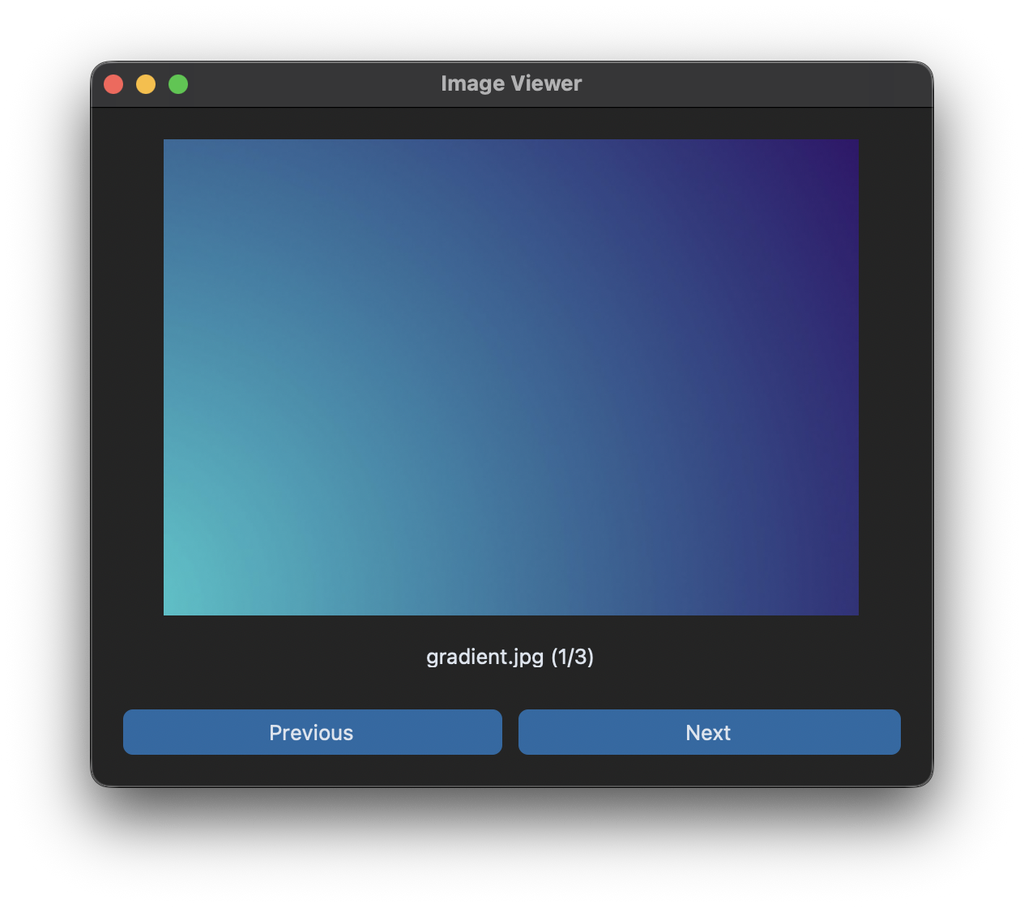
Build
Install PyInstaller in the same environment as CustomTkinter. Calling it with python -m makes sure that the right environment is used:
python -m pip install pyinstaller
Then run this command in the folder image_viewer:
python -m PyInstaller --noconfirm --onedir --windowed --name "Image Viewer" --icon icon.ico --hidden-import PIL._tkinter_finder --add-data "images:images" --add-data "icon.ico:." --add-data "icon.png:." app.py
--onedircreates a folderdist/Image Viewerwith the executable and a folder_internalwith everything it needs.--windowedhides the console window on Windows and creates an.appbundle on macOS.--namesets the name of the executable.--iconsets the icon of the executable file, which is shown in the Explorer, the Finder or the taskbar. It is independent of the window icon that the app sets withiconbitmaporiconphoto. PyInstaller converts the file with Pillow if it is not in the format of the platform, so on macOS you can also passicon.png.--hidden-import PIL._tkinter_finderis needed for apps that useCTkImage. Pillow loads this module in a way that PyInstaller doesn't detect, and without it the packaged app crashes withModuleNotFoundError: No module named 'PIL._tkinter_finder'.--add-data "source:destination"includes files and folders. The destination is relative to the folder ofsys._MEIPASS, so"images:images"copies the folderimagestoimages, and"icon.ico:."copies the icon to the top level.
The theme and font files of CustomTkinter are included automatically by current versions of PyInstaller.
PyInstaller always builds for the operating system it runs on. For a Windows program, build on Windows, and for macOS on macOS.
One file
With --onefile instead of --onedir, PyInstaller creates a single executable, which is easier to share. On every start it unpacks itself into a temporary folder first, so it starts a bit slower:
python -m PyInstaller --noconfirm --onefile --windowed --name "Image Viewer" --icon icon.ico --hidden-import PIL._tkinter_finder --add-data "images:images" --add-data "icon.ico:." --add-data "icon.png:." app.py
Thanks to resource_path, the code of the app is the same for both variants.
Spec file
After the first build, PyInstaller creates a file Image Viewer.spec, which contains all options of the command. For later builds you can edit this file and run it directly, instead of typing the long command again:
python -m PyInstaller --noconfirm "Image Viewer.spec"
Common errors
The app closes immediately or shows "Failed to execute script"
Build once without --windowed and start the program from a terminal. Then you see the error message in the console, which is hidden with --windowed.
FileNotFoundError for an image, icon or theme file
The file was not included with --add-data, or the app doesn't load it with resource_path. Check that the destination of --add-data matches the path that is passed to resource_path.
ModuleNotFoundError: No module named 'customtkinter'
PyInstaller ran in another Python environment than the one where CustomTkinter is installed. Install both in the same environment and use python -m PyInstaller.
The virus scanner reports the program
Some virus scanners report programs that were created with PyInstaller, especially with --onefile. Use the newest PyInstaller version, prefer --onedir, and sign the program if you distribute it to many users.